How to Save YouTube Videos as Audio Files Legally
Learn how to save YouTube videos as audio files you are allowed to keep, choose MP3 or M4A, and import them for study.
Save a YouTube video as a standalone audio file only if you own it or are allowed to copy it, then convert an authorized local download to M4A, MP3, or WAV. YouTube Premium offline playback doesn't export an MP3.
The popular advice to paste any public video URL into a converter skips the decision that matters most: whether you may keep that recording. A converter can change a file's format, but it can't give you permission.
For students, the useful question isn't just how to save YouTube videos as audio files. It's how to keep a permitted recording that plays properly, preserves the explanation, and becomes something you'll study.
Table of Contents
- When a YouTube Video Can Become an Audio File
- Phones, Premium, Extensions and Web Tools
- Best Export Formats and Quality Settings
- Convert an Authorized Video and Fix Common Failures
- Upload the Audio and Study from the Lecture
When a YouTube Video Can Become an Audio File
Start with ownership, permission, or a license that permits copying. A separate audio file is appropriate when you own the recording, the creator supplies an authorized download, or the applicable license allows the copy you intend to make.
Check that permission covers your intended use. Permission to listen privately doesn't necessarily include uploading the recording to another service, sharing it with classmates, or publishing an edited version.
Which save is allowed for this video
| Situation | What you may keep | What to do |
|---|---|---|
| You own the upload or have written permission | Standalone M4A, MP3, or WAV | Download from YouTube Studio or the creator, then convert locally |
| License explicitly allows copying | A file that still meets that license | Keep required attribution and any noncommercial limit |
| YouTube Premium offline only | In-app video, not an exported MP3 | Use the YouTube app offline download for eligible videos |
| No ownership and no permission | No separate audio file | Ask the instructor for the original recording |
Read the license rather than relying on a label beneath the video. Check who owns the material, what copying is permitted, and whether attribution or restrictions apply. A lecture can also contain material from other owners, such as music or film clips, that the lecturer can't independently authorize you to reuse.
A practical request to an instructor can be simple: ask whether they can provide the original audio recording and whether you may use it for private revision and transcription. That's more useful than asking vaguely whether downloading is okay.
Why private study isn't automatic permission
The U.S. Copyright Office's fair-use guidance explains that unauthorized downloading of protected works can infringe copyright, with statutory damages reaching $30,000 per infringed work, or $150,000 when infringement is proven willful. Those are potential statutory limits, not automatic penalties for every download.
U.S. fair use doesn't provide an automatic percentage or seconds-based safe harbor. Courts assess the purpose and character of the use, the nature of the work, the amount and substantiality copied, and the effect on the potential market. Educational purposes can weigh in your favor, but copying an entire lecture isn't automatically fair use because an exam is approaching.
Practical rule: Public access tells you where you can watch a recording. It doesn't tell you what copies you may make.
Keep a permission email or license note beside the recording. If you're unsure about uploading someone else's material for processing, review the relevant copyright guidance before proceeding.
Finally, decide whether audio will preserve the lesson. Keep the video when slides, equations, laboratory demonstrations, or sign language carry essential meaning. An authorized audio copy can still be the wrong study resource.
Phones, Premium, Extensions and Web Tools
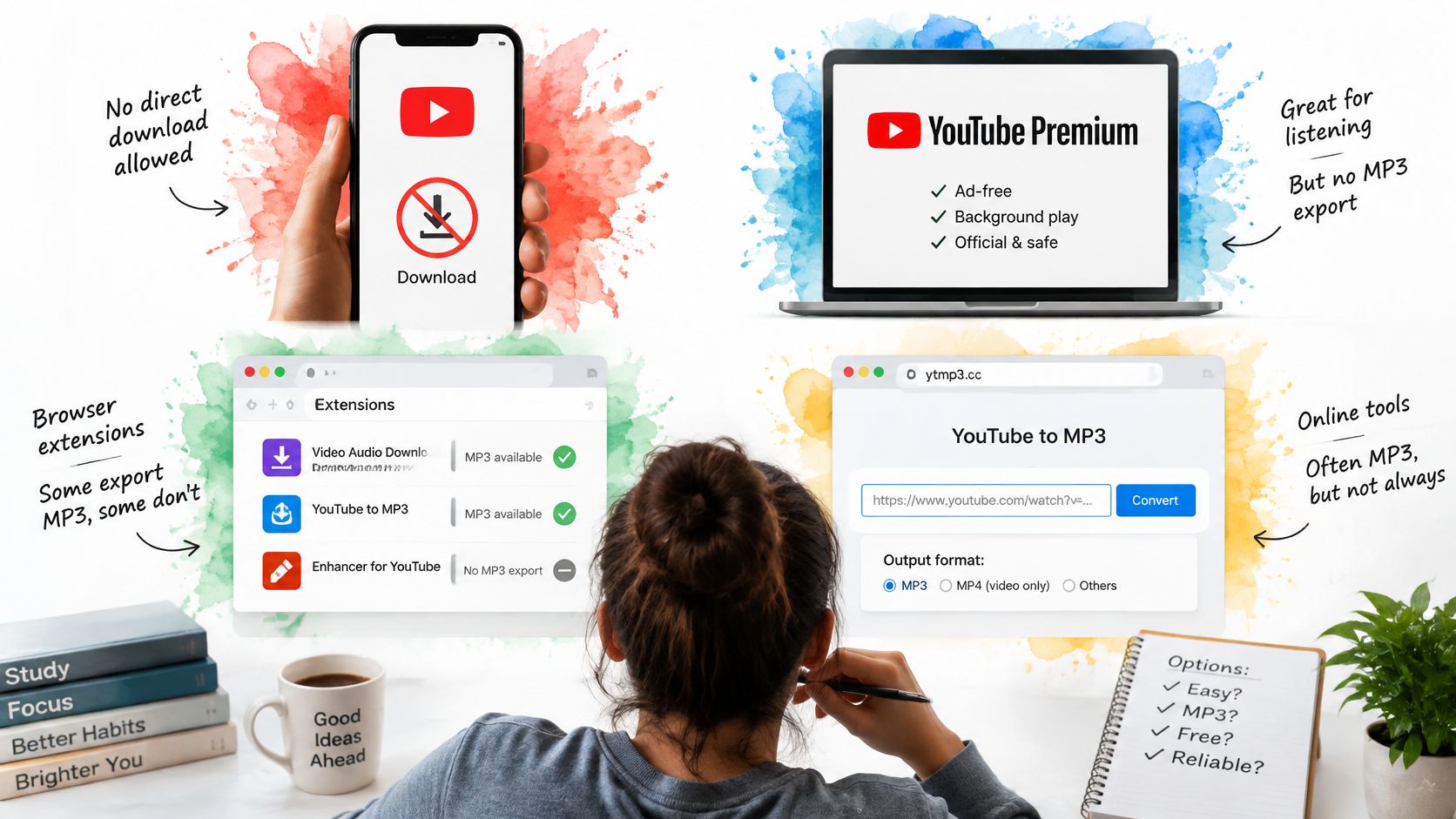
Your device changes the available tools, not the permission required. The clearest distinction is between offline playback inside YouTube and a standalone file you can open elsewhere.
According to YouTube's offline video guidance, its mobile app doesn't support downloading audio, music, or MP3 files separately. Its official offline feature saves eligible videos for playback within the app.
Choose the tool that matches the source
YouTube Premium makes sense when you want permitted offline listening and don't need a portable file. Use the app's available download controls rather than looking for a way to copy its saved media into another application. Eligibility and availability can differ by video and region.
On an iPhone or Android phone, start with a recording you already have permission to keep. For example, an instructor might send a video file that you save in Files or your device's file manager. A local conversion tool can work on that file without using a public YouTube page as its input.
Browser extensions and web converters often blur downloading and conversion. A page that accepts a watch URL isn't an official export mechanism merely because it produces a working MP3. Don't mistake a convenient interface for authorization, and don't give an unfamiliar converter access to private course recordings.
Desktop applications, including VLC and FFmpeg, have a clearer role after the authorized file is local. They can extract or convert its audio. A downloader pointed at a YouTube watch page performs a different task and isn't necessary for this workflow.
When the file isn't available
For a live class, ask whether recording is permitted before capturing it. If it is, use the approved recording method; otherwise, request the instructor's recording or a suitable alternative.
For an inaccessible or deleted video, contact the instructor rather than trying successive mirror sites. Keep the original YouTube address as a reference, not as proof that a permanent copy was authorized.
- Premium: Choose in-app offline playback when listening is enough.
- Phone: Convert an authorized file already stored on the device.
- Extension or website: Don't treat public-URL access as permission.
- Desktop: Use local media tools after obtaining the file legitimately.
Best Export Formats and Quality Settings
Audio-only study fits a real listening habit. In its February 2025 podcast announcement, YouTube reported more than 1 billion monthly podcast users and over 400 million hours of podcasts watched monthly on living-room devices.
That scale explains why people want convenient listening options. It doesn't mean every recording benefits from losing its picture, or that MP3 should always be the output.
Audio formats for lectures and spoken video
| Format | Use it when |
|---|---|
| M4A AAC stream copy | The file is already AAC and the player accepts M4A. Preserve the source bitrate rather than selecting a new quality setting. |
MP3 VBR -q:a 2 | A device or app rejects M4A. Encode from the original source and let variable bitrate adapt to the audio. |
| Speech re-encode | A device needs a smaller file and lossy re-encoding is unavoidable. Test a representative passage before converting the whole lecture. |
| WAV PCM 16-bit | You're editing or a tool requires PCM. Expect a substantially larger file than compressed speech audio. |
| Keep the video | Slides, equations, demonstrations, or sign language matter. Retain the visual explanation instead of relying on extracted speech. |
The distinction between container and codec prevents a lot of confusion. A container is the file structure that holds the media; a codec is the method used to encode the audio. M4A commonly holds AAC audio, but giving a file an M4A extension doesn't establish what's inside it.
For a fuller explanation of those differences, use this guide to audio file formats. Choose based on the player or study tool you'll use, not on which extension sounds most familiar.
Match quality to the listening job
For phone revision, an existing compatible AAC track in M4A is a sensible starting point. For an older MP3 player, MP3 may be necessary. For an editing session, WAV can be appropriate when the editor or processing pipeline requires uncompressed PCM.
Don't assume a larger output contains more useful information. Exporting compressed speech as WAV creates an uncompressed representation of that speech, not a better microphone recording. It won't repair clipping, room echo, or a speaker who was too far from the microphone.
If smaller files are necessary, test difficult speech rather than the lecturer's clearest sentence. Listen for technical terms, quiet questions from classmates, consonants, and words spoken over background noise. Music and film soundtracks need different treatment from a mostly spoken lecture.
The best study file is the smallest convenient version that preserves what you need to understand, not the largest export your software offers.
Check context as well as sound. A lecturer saying “move this term here” may be perfectly audible but educationally incomplete without the board. Keep captions separately if you need them, because an extracted audio track doesn't contain the video's caption display.
Avoid quoting an hourly file size without checking the actual encoding. Duration, bitrate, channels, and sample rate all affect storage. Inspect the resulting file and test it in the destination app before converting the rest of your course recordings.
Convert an Authorized Video and Fix Common Failures
Work on an authorized local video, not a public watch-page URL. Keep the source untouched and create a separate audio output, so a mistaken export costs you minutes rather than the only copy you were allowed to keep.
The FFmpeg audio extraction walkthrough describes independent handling of audio and video streams, including stream copying and audio encoding. The important choice is whether to copy an existing compatible audio stream or encode a new one. Stream copying lifts the audio out of the container unchanged; encoding builds a new file, which is the right tool only when your destination can't play the original codec.
Prepare the file before converting
-
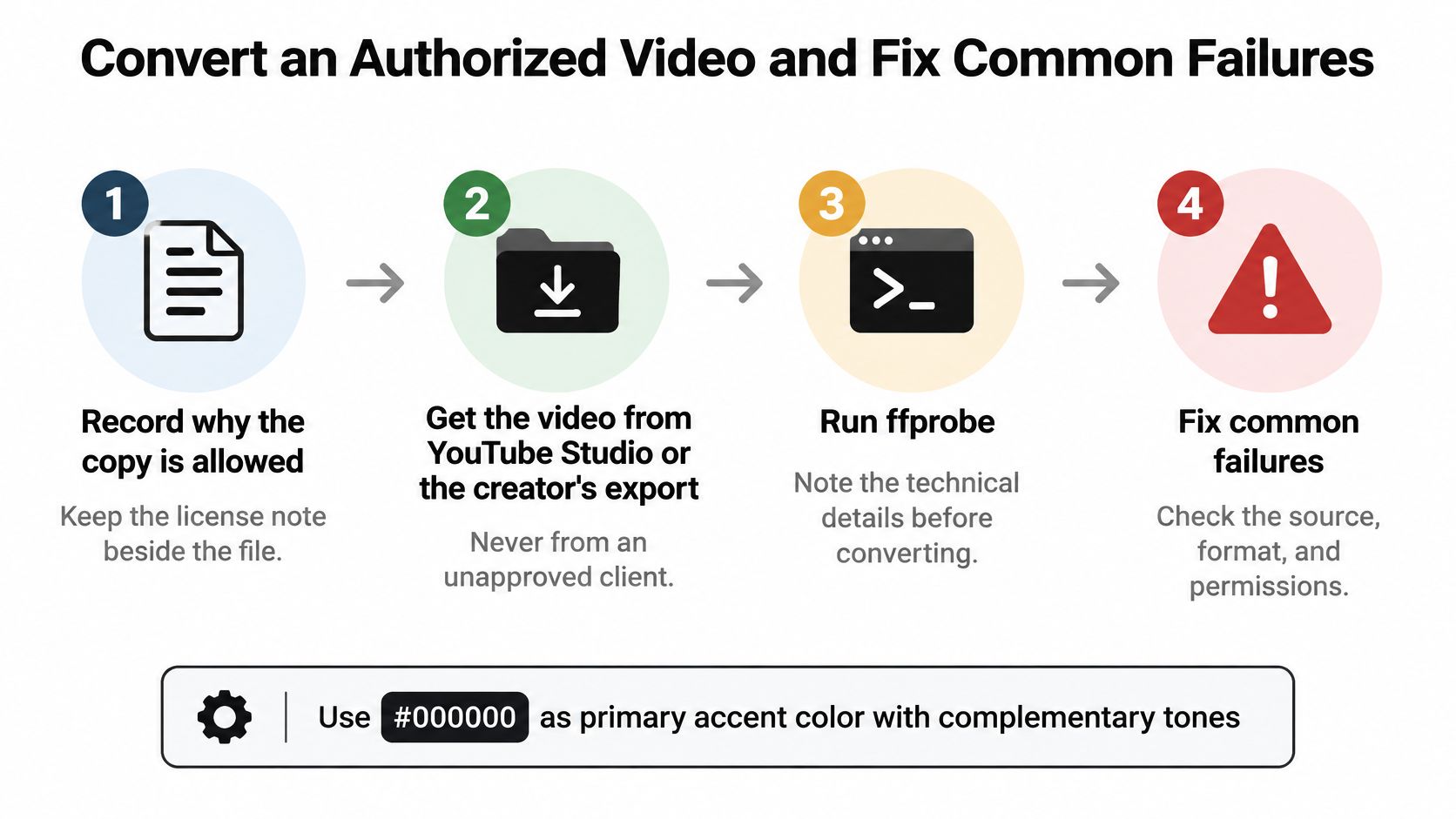
Record why the copy is allowed. Save the permission email, license text, or ownership note beside the recording. Include any attribution requirements and restrictions on uploading or sharing. This prevents a technically successful export from becoming an unauthorized reuse.
-
Get the authorized source file. For your own upload, use the available YouTube Studio download or export. Otherwise, request the creator's original file or approved download. An instructor's original recording may also be easier to work with than a platform-processed version.
-
Inspect the audio streams. With FFmpeg and ffprobe installed, open a terminal in the file's folder and run
ffprobe -hide_banner -show_streams "input.mp4". Look for the audio codec, channel layout, sample rate, available bitrate information, and language tags. Some metadata may be absent, so confirm the language by listening too.
Store the authorized original and its permission note together before any conversion, and keep them together afterward. Upload permission deserves particular attention when a lecture contains classmates' voices or restricted course material.
Use the actual filename in place of input.mp4. Quotation marks help when filenames contain spaces. If your file is elsewhere, provide its full local path rather than moving or renaming files at random until a command works.
Choose the appropriate conversion
-
Stream-copy compatible AAC into M4A. Run
ffmpeg -i "input.mp4" -vn -map 0:a:0 -c:a copy "output.m4a". The-vnoption excludes video, while-c:a copykeeps the encoded audio instead of re-encoding it. Use this when the inspected codec is compatible with M4A and your destination accepts it.The mapping expression
-map 0:a:0selects the first audio stream from the input. It doesn't mean English, the lecturer's microphone, or the best-quality track. Inspect and audition the streams before choosing. -
Encode MP3 when compatibility requires it. Run
ffmpeg -i "input.mp4" -vn -map 0:a:0 -c:a libmp3lame -q:a 2 "output.mp3". This creates an MP3 rather than changing only the container. Use the original video as input, not an audio file that has already been converted repeatedly. -
Create PCM WAV when an editor requires it. Run
ffmpeg -i "input.mp4" -vn -map 0:a:0 -c:a pcm_s16le "output.wav". Keep this as a working derivative for the tool that needs PCM. You don't have to make WAV your everyday listening copy. -
Check the output in the destination application. Play the beginning and sample passages later in the lecture. Confirm the spoken language, audibility, duration, and presence of the lecturer rather than a commentary track or music bed. Then test the file in the player or upload form you intend to use.
-
Preserve a clean source and clearly named derivative. Use names such as
biology-cell-signaling-original.mp4andbiology-cell-signaling-review.m4a. Keep permission notes with the original, and avoid overwriting it during trimming or processing.
Fix failures by symptom
The player rejects the file. Check whether someone only changed the extension. Renaming lecture.webm to lecture.mp3 doesn't create MP3 audio. Inspect the codec and produce a compatible container or encoding.
If stream copying to M4A fails, don't assume the recording is damaged. The source codec may be incompatible with that container. Keep it in a suitable container or encode to the format your destination requires.
The transcript is in the wrong language. Inspect all audio streams and select the correct one explicitly. Change the audio-stream selection only after identifying which track contains the language you need. A filename or video title won't reliably identify the selected track.
The output starts with silence or background music. Compare the same passage in the original video. The lecturer may start later, or you may have selected a secondary track. Don't trim immediately, because removing the opening can shift timestamps away from the source recording.
Speech sounds worse after several exports. Return to the original. Re-encoding compressed AAC or Opus as MP3 introduces another lossy generation; repeating that process can make speech less clear. Stream copying preserves the existing encoded audio, while increasing an export setting can't restore discarded detail.
The WAV is unexpectedly large. That can be normal for uncompressed PCM. If your task is listening or uploading to a tool that accepts compressed audio, use a suitable M4A or MP3 derivative instead. Don't reduce quality blindly just because the WAV looks alarming.
The command can't find the input. Check the current folder, filename, and extension. On systems that hide known extensions, a file displayed as lecture may still have an extension you need to include. Quote paths containing spaces.
Before batch conversion: Open a completed output in the actual destination app. A command finishing without an error doesn't prove you selected the right lecture track.
Normalize volume only when your downstream tool requires it or a clear listening problem justifies it. Keep that processed version separate so you can compare it with the untouched recording.
Upload the Audio and Study from the Lecture
A playable file is the beginning of revision, not the finished result. Upload the permitted M4A, MP3, or WAV to your chosen study tool, then check the transcript before generating study materials.
If the explanation depends on visual content, use the authorized video instead. Keep the recording, transcript, and source reference together so you can verify an unclear passage without hunting through browser history.
Check the transcript before trusting the summary
Start with terminology that matters to your course. In a nursing lecture, check medication names against the recording and course materials. In a construction or safety lecture, verify technical terms and distinctions rather than treating generated wording as authoritative guidance.
An unclear transcript can produce an unclear summary. Correct or flag uncertain passages before turning them into flashcards, and check timestamped answers against the recording when accuracy matters.
Keep the original YouTube, Zoom, Drive, or Panopto reference beside the transcript when your tool supports it. An attached reference lets you revisit the source; it shouldn't be treated as evidence that the service downloaded the public page.
Turn the recording into retrieval practice
Don't begin by asking for every possible study resource. Choose a small review task tied to what you need to remember.
- Ask a scoped question. Try “What distinction did the lecturer make between these concepts?” rather than requesting a general explanation from outside the lecture.
- Verify the answer. Follow its timestamp to the relevant passage and compare the wording with your notes.
- Build a focused summary. Separate the main argument, supporting examples, and anything you still need to clarify.
- Create recall prompts. Turn definitions, comparisons, and processes into questions you can answer without playing the recording.
- Review carefully. When a flashcard tool offers Again, Hard, Good, and Easy ratings, choose based on recall rather than familiarity.
For a more complete revision routine, follow this guide to studying from recorded lectures. The useful change is moving from passive replay to questions you can answer and explanations you can check.
Say a lecture compares competing theories. First, ask which evidence the lecturer used for each theory. Then close the transcript and explain the difference aloud before checking your answer.
Keep any unresolved disagreement visible in your notes. A polished generated response isn't a substitute for the lecturer's actual wording, assigned reading, or a clarification from your instructor.
For your next recording, finish a complete review cycle before converting more files: confirm permission, create a working audio copy, check the transcript, and answer a short set of lecture-specific questions. That's a better use of study time than filling a folder with recordings you never revisit.
ClassLecture.ai turns permitted lecture recordings into transcripts, summaries, timestamp-cited Q&A, and flashcards, with support for M4A, MP3, WAV, and video uploads. Visit ClassLecture.ai to upload an authorized recording, attach its source reference, and start with a question about a passage you want to understand.
The ClassLecture.ai Team
We build ClassLecture.ai, the AI study assistant that turns your recorded lectures into transcripts, summaries, flashcards, and answers cited to the exact timestamp — so you learn faster from your own professor's words.
Keep reading
Audio File Formats Explained for Lecture Uploads
Learn the most common audio file formats for lectures, recordings, and uploads. Compare MP3, WAV, AAC, MP4, and more for quality and compatibility.
ReadMP4 to SRT Conversion: A Practical Guide for Students
MP4 to SRT. Learn how to convert MP4 video to SRT subtitle files with automated transcription, timing fixes, and integration with lecture study tools
ReadVideo Summarizer AI: How It Works and How to Use It
Learn what video summarizer AI is, how it turns long lectures into searchable notes, where it falls short, and best practices for using timestamps effectively.
Read