10 Software for Recording Lectures in 2026
Compare 10 software for recording lectures, from OBS and Otter.ai to ClassLecture.ai, with use cases, limitations, and study workflow tips.
The most popular advice about software for recording lectures starts in the wrong place. People compare resolution, microphone support, and recording buttons, then treat the resulting video as the finished product. In practice, a clear recording can still become a forgotten file if you can't search it, connect it to your notes, deliver it through the right course system, or turn it into useful review material.
The better choice depends on what happens after you press record. You may need local control with OBS Studio, synchronized handwriting with Notability or OneNote, polished editing with Camtasia, fast transcription with Otter.ai, or institutional capture and delivery through Panopto, Echo360, YuJa, or Kaltura. You may also want to move the recording into an active study system such as ClassLecture.ai, where the lecture becomes searchable and usable for questions, summaries, flashcards, and spaced review.
The ten tools below cover desktop, mobile, browser-based, meeting, personal note-taking, and higher-education workflows. Each comparison focuses on the job the tool performs, how it feels during a real lecture, where it falls short, and what you should do with the recording next.
Table of Contents
- 1. ClassLecture.ai
- 2. Panopto
- 3. Echo360
- 4. YuJa Enterprise Video Platform
- 5. Kaltura Classroom
- 6. Camtasia
- 7. OBS Studio
- 8. Otter.ai
- 9. Notability
- 10. Microsoft OneNote
- Top 10 Lecture Recording Tools: Feature Comparison
- Choose the Recording Workflow You Will Actually Use
1. ClassLecture.ai
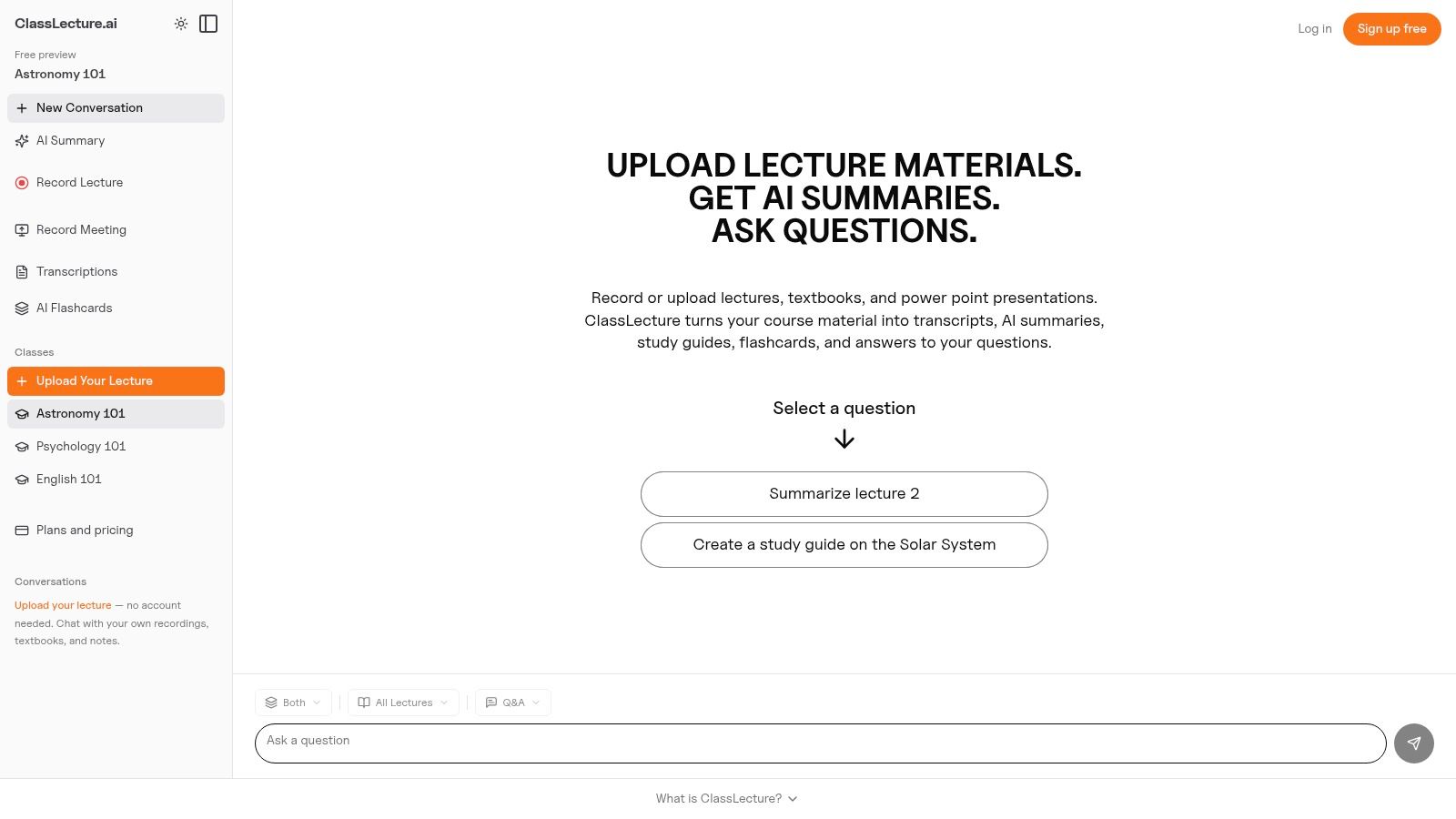
ClassLecture.ai fits a workflow where recording is the start, not the deliverable. It combines lecture capture with study conversion. Upload or record lectures, meetings, notes, and textbooks, then work from transcripts, summaries, cited Q&A, study guides, and flashcards.
The platform accepts common audio and video formats, including MP3, MP4, M4A, WAV, MOV, and WEBM. You can bulk-upload up to 80 files, record in a browser, or capture tab and system audio from Zoom, Google Meet, and Microsoft Teams sessions in Chrome or Edge. Product information supplied for this comparison states that a typical one-hour lecture can transcribe in about 5 to 10 minutes.
Best for capture-to-study conversion
Its main role is turning your own academic content into a searchable review system. After transcription, you can ask questions about a lecture, notes, textbook, or combination of sources. Answers include cited timestamps and document page references, allowing you to check the original explanation rather than rely on an unsupported summary.
A practical exam-preparation workflow looks like this:
- Search the lecture: Find a concept in the transcript and jump to its timestamp.
- Ask focused questions: Use Q&A or Conversations to clarify dense material from the supplied sources.
- Generate review material: Create AI summaries, structured study guides, and flashcard decks.
- Schedule active review: Flashcards use FSRS spaced-repetition scheduling, with class-wide review and exam-readiness tracking.
ClassLecture.ai organizes content by class, term, and year. That structure helps when several courses generate recordings and supporting documents throughout a semester. You can export Q&A sessions as PDFs and upload notes or textbooks in PDF, DOCX, EPUB, Markdown, and HTML formats.
Trade-offs and access
The free plan includes 3 hours of lecture transcription per month, 3 AI summaries, 10 Q&A questions, 3 flashcard decks, and document uploads limited to 3 files or 100 MB per month. Paid plans start at $17 per month when billed yearly, or $20 month to month. Those limits work for testing, while heavier semester use may require an upgrade.
The platform states that it uses encryption in transit and at rest, and that recordings and documents are not sold or used to train outside models. Recording still requires permission from classmates or instructors. The browser setup guide, how to record lectures in a browser, covers the capture process.
Best use: Record or upload the lecture, check the transcript, then create questions and flashcards before exam preparation begins.
2. Panopto
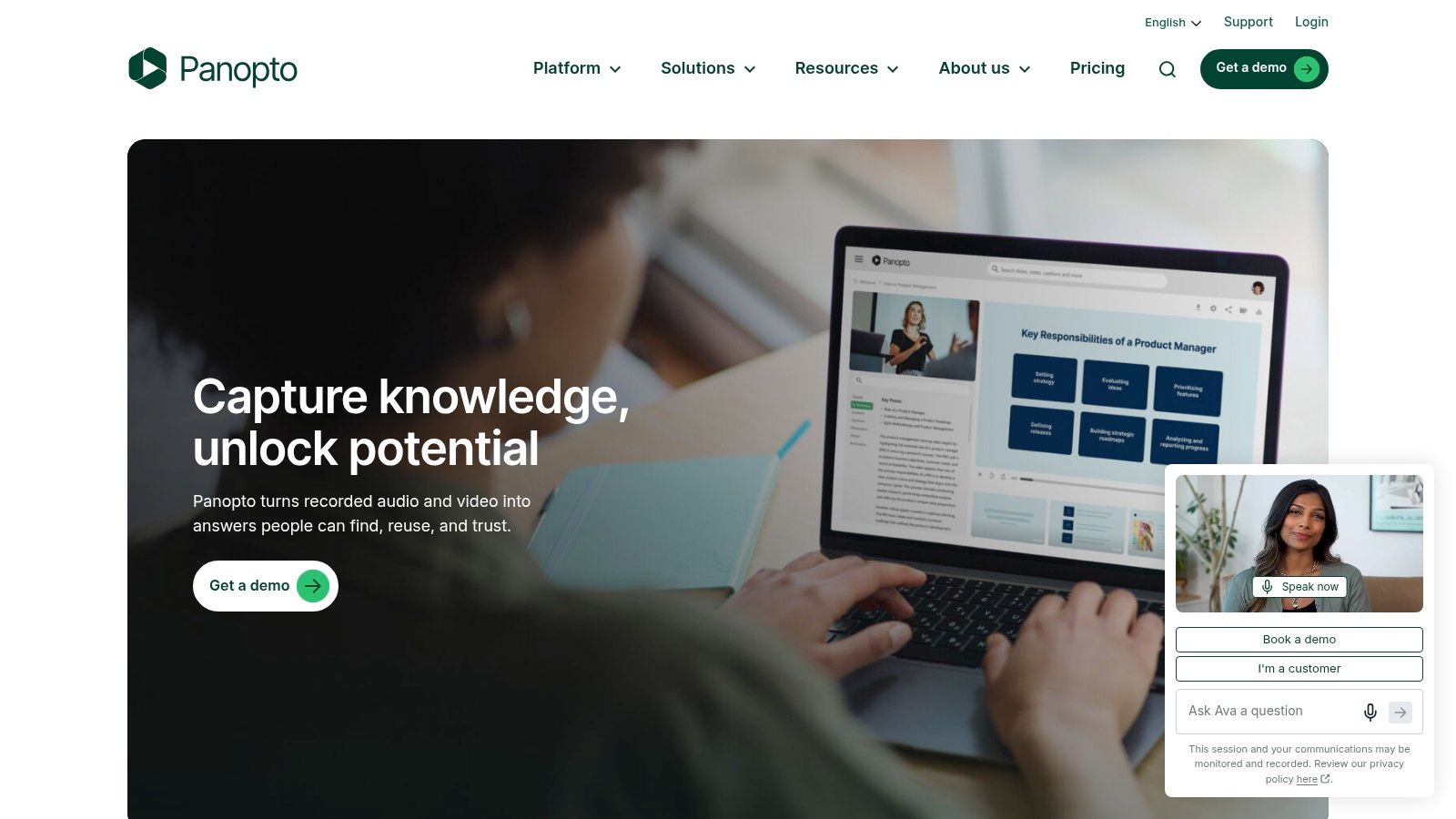
Panopto is built for institutions, not for a student who needs an audio file. It handles the complete lecture-capture chain, including multi-source recording, centralized hosting, search, permissions, analytics, and learning management system delivery. Universities and corporate training teams can use it to manage recordings across classrooms and courses rather than passing files between individuals.
A lecture may include the instructor camera, presentation screen, microphone, and other inputs. Panopto keeps those sources associated in a managed video library, then supports integrations with Canvas, Blackboard, D2L, Moodle, and other LMS environments. Its search tools cover spoken content and on-screen text, which is more useful than searching only by filename or lecture title.
Best for institutional delivery
The advantage appears after class. Administrators can control access, organize libraries, apply permissions, and connect recordings to the correct course space. Instructors don't need to download, edit, and manually distribute every session. Students can find the recording where course materials already live.
This also makes Panopto a better fit for institutions that need to think about retention and accessibility rather than capture alone. Automatic captions may support discovery, but campus teams still need to review captions for accuracy and accessibility. Institutional guidance cited in the brief notes that machine captions can fall around 85% to 90% accuracy, while WCAG 2.1 AA and Section 508 workflows may target 99% or higher accuracy. Those figures come from the Panopto lecture recording software guide, which also explains the broader institutional workflow.
Limitations
Panopto is usually excessive for an individual student or independent instructor. Pricing is organization-level, and the best experience depends on IT configuration, LMS integration, permissions, and deployment support. If you only need to record a single lecture and turn it into study notes, a personal tool will involve less setup.
3. Echo360
Echo360, now associated with EchoVideo and Universal Capture, is designed around lecture capture plus active learning. It can record a presentation screen, camera, and audio from a managed classroom or an instructor's own computer. That flexibility helps institutions support both scheduled room capture and personal recording without forcing every lecturer into the same physical setup.
Universal Capture can combine screen, camera, and microphone inputs, including dual 1080p channels according to the supplied product information. It can also publish recordings through an LMS and provide engagement features such as questions and analytics. This makes it more than a passive archive, especially when instructors want students to interact with course videos.
Best for flexible campus capture
Echo360 works well when the institution needs several capture modes. A lecturer can record from a classroom system, while another instructor records from a personal computer. Administrators can monitor or manage capture devices remotely, then connect the resulting content to course workflows.
The student experience depends heavily on deployment quality. When the LMS connection and course structure are configured properly, recordings feel like part of the class rather than a separate video site. When those pieces aren't configured, even strong capture hardware can leave students searching through multiple systems.
For transcript-centered study, you may need a separate workflow after the recording is published. This guide to transcribing a lecture explains how to move recorded material into a searchable text and review process.
Limitations
Echo360 is priced and deployed for institutions. An individual usually won't get the full benefit without campus access or administrator support. The platform also asks an institution to make decisions about device management, LMS publishing, engagement features, captions, permissions, and retention. That overhead is justified for a managed program, but not for casual recording.
4. YuJa Enterprise Video Platform
YuJa takes a browser-first approach alongside its broader enterprise video platform. Browser Capture Studio allows instructors and students to record without installing a desktop application, while the video content management system handles libraries, publishing, analytics, and institutional access.
That no-install option is valuable for instructors working across managed computers or changing rooms. A browser workflow can reduce the friction between deciding to record and producing a usable class video. YuJa also supports classroom and laptop capture, with optional appliances for institutions that need dedicated room infrastructure.
Best for browser capture and searchable libraries
YuJa is a sensible choice when a university wants a common video layer for classroom recordings, live streams, and interactive content. Its LMS integrations help place media inside course workflows, while the central library gives administrators a place to manage permissions and content.
Search is more useful when it reaches beyond titles. The platform's supplied feature set includes searchable, interactive video and visual search across captions, slides, tags, and notes. That supports students who need to find a specific concept without scrubbing through an entire lecture.
The browser recorder is also a practical fit for instructors who create short supplementary explanations from a laptop. It won't replace a full classroom deployment where multiple cameras and dedicated microphones matter, but it lowers the barrier for simpler sessions.
Limitations
YuJa doesn't publish self-serve pricing in the supplied product information. Licensing is adapted to organizations, so individual buyers shouldn't evaluate it like a consumer recorder. Its feature set may also be more than a single instructor needs, particularly if the actual goal is to produce transcripts and flashcards from existing recordings.
5. Kaltura Classroom
Kaltura Classroom makes the most sense when a campus already relies on Kaltura's video ecosystem. It connects multi-source classroom and desktop capture with Kaltura's enterprise video platform, MediaSpace, and LMS integrations. The benefit is continuity. Recording, management, publishing, and analytics can remain inside one institutional environment.
The capture workflow can include classroom inputs and instructor devices, while administrators manage scheduling and distribution centrally. For a university standardizing its media systems, that can reduce the number of separate services faculty and students must learn.
Best for an existing Kaltura environment
Kaltura is broader than a simple lecture recorder. Its video content management capabilities support institutional libraries, analytics, and controlled distribution. That helps when recordings need to serve several audiences, such as enrolled students, faculty, staff, or approved public viewers.
The platform is also suitable for institutions that want to connect lecture capture with wider video operations. An instructor may record a class in a room, publish it through the LMS, and keep the source inside the same managed video platform used for other teaching content.
A campus already invested in Kaltura will usually have the clearest reason to choose it. The value comes from the ecosystem and the administrative workflow, not merely from the record button.
Limitations
Kaltura doesn't list public pricing in the supplied information and expects sales-led institutional licensing. Deployment also benefits from IT involvement. Smaller departments or individual educators may find that the platform's administration, integration, and governance features create more complexity than their recording project requires.
6. Camtasia
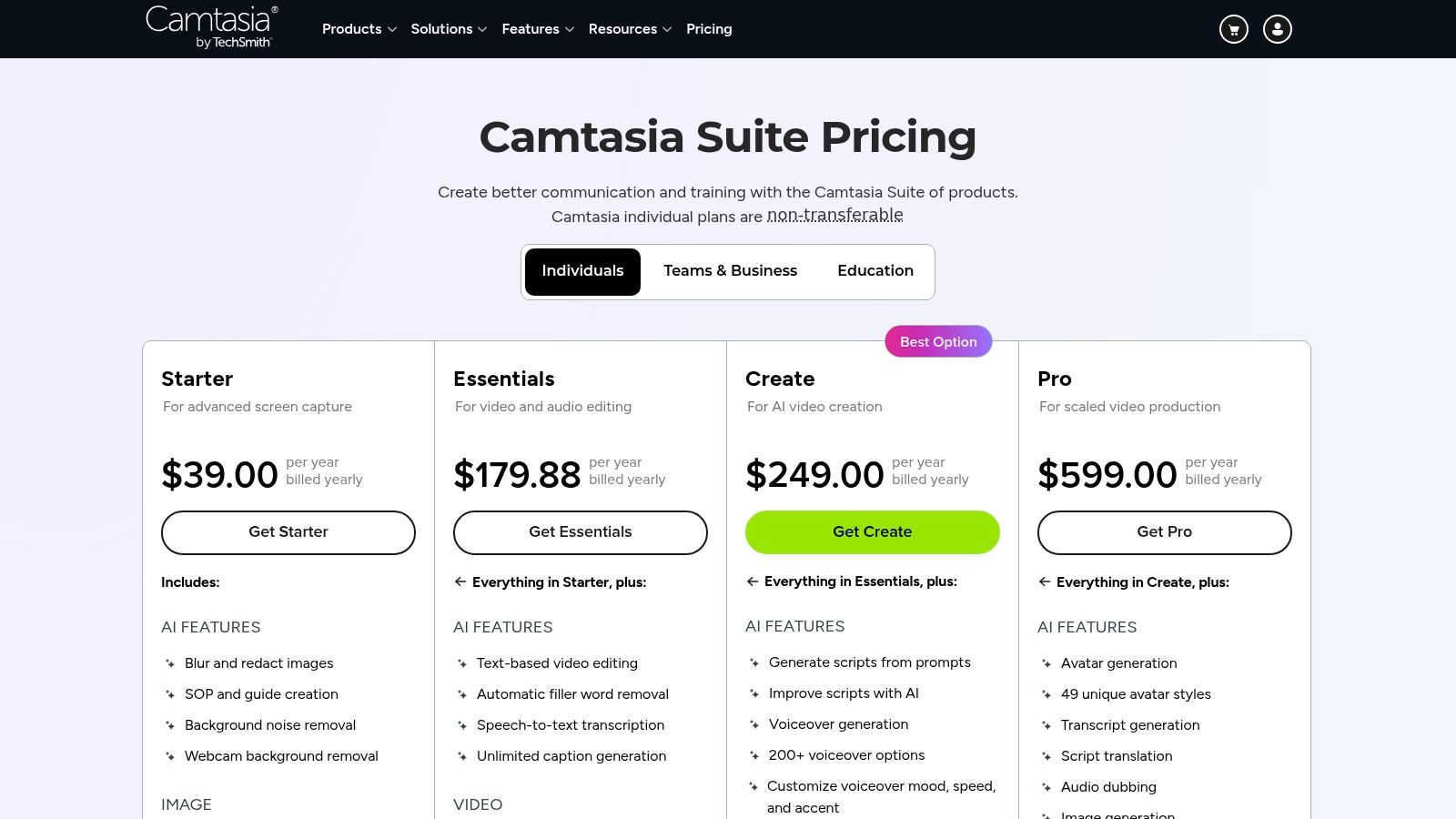
Camtasia is the practical choice when a lecture recording needs editing before anyone watches it. It captures the screen, camera, microphone, and system audio, then gives the instructor a non-linear editor for cutting pauses, correcting mistakes, adding cursor effects, inserting transitions, and shaping the lesson for asynchronous viewing.
That makes it different from Panopto, Echo360, YuJa, and Kaltura. Those platforms emphasize managed capture and delivery. Camtasia emphasizes production. You control the finished video rather than uploading the raw session.
Best for edited teaching content
An instructor creating a flipped-classroom lesson, tutorial, or recorded explanation can record and edit in one application. Text-based editing and transcription are available with the appropriate plan, while quizzes and SCORM export can support structured course delivery. TechSmith also offers related tools such as Audiate and Snagit in some plans.
The editor is approachable compared with a professional video editor, but it still gives you meaningful control. You can remove dead time, emphasize a slide, zoom toward a screen detail, and make the result easier to follow. That matters because a raw lecture often includes setup time, interruptions, or sections that only made sense in the room.
Production rule: Record a short sample before the full lecture. Confirm that the microphone, presentation audio, and camera are all present before committing to a longer session.
Limitations
Camtasia is heavier than a record-only utility, and full access uses subscription pricing. It also isn't a complete institutional video library with campus-wide permissions and LMS administration. For a polished individual lesson, that's acceptable. For scheduled capture across many rooms, it usually needs to sit beside, rather than replace, an institutional platform.
7. OBS Studio
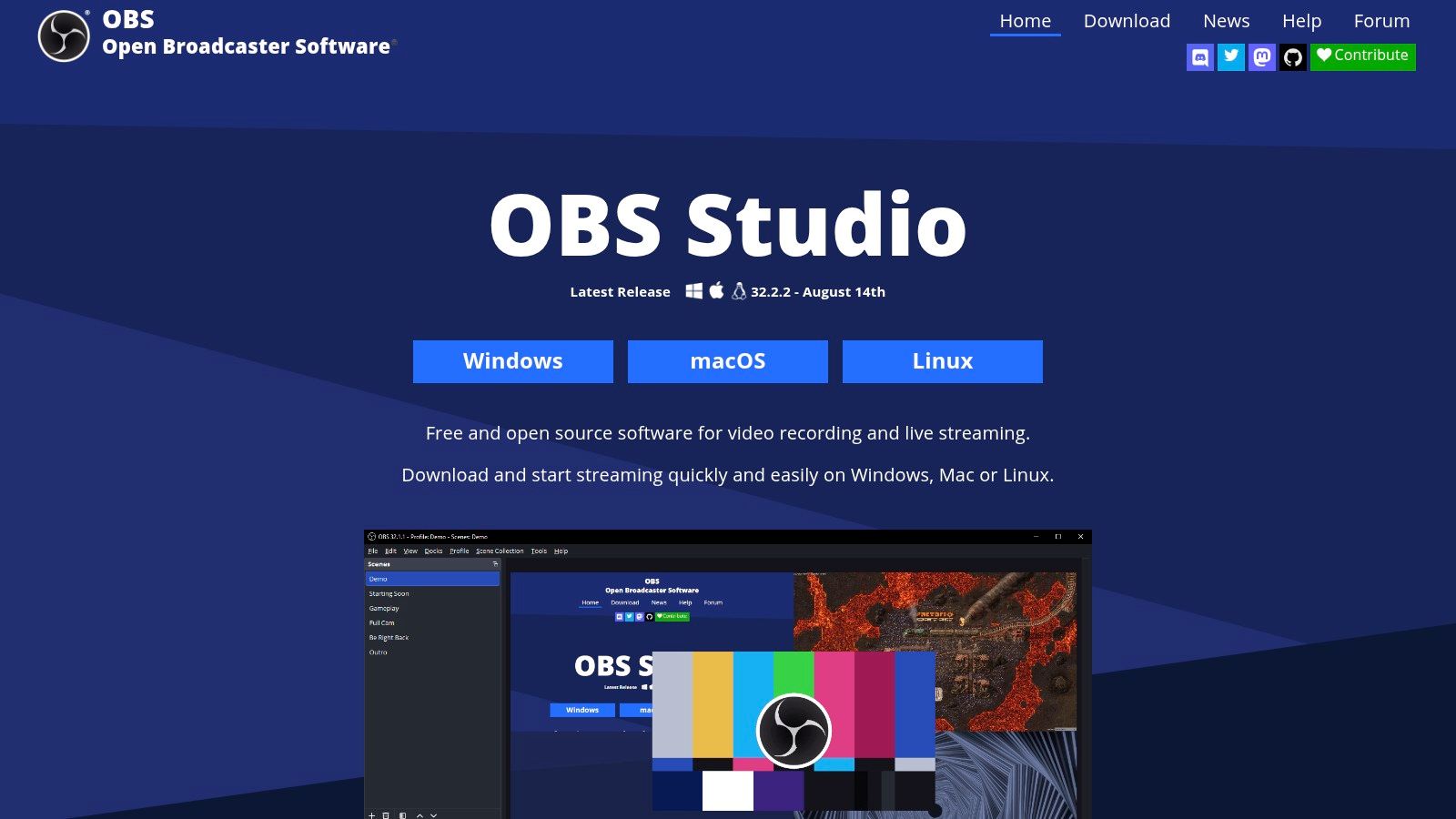
OBS Studio is the tool for users who want control and don't mind learning how the pieces fit together. It's free, open-source, and cross-platform across Windows, macOS, and Linux. You build scenes from display capture, webcams, microphones, and other sources, then record locally or stream live.
For lecture recording, the scene system is the main attraction. You can create one layout for slides and voice, another for slides plus camera, and a third for demonstrations. Audio mixing lets you balance microphone and system sound, while hardware encoder support can help manage the recording workload on compatible systems.
Best for flexible desktop capture
OBS is particularly useful for instructors who create screen-based lessons or want to combine several inputs without paying for a commercial recorder. Local recording also gives you direct control over the source file. That can be useful when institutional policy or privacy requirements make automatic cloud upload undesirable.
The trade-off is that OBS doesn't guide you through the workflow. You need to select the correct display, set the microphone, check desktop audio, choose recording settings, and understand where files are saved. A setup that looks correct can still produce a silent microphone or a blank presentation capture if you don't test it.
Limitations
OBS has no built-in hosting, LMS integration, or automatic transcript generation in its core workflow. After recording, you'll need another tool for editing, delivery, transcription, or study conversion. Plugins extend its capabilities, but they also add maintenance and troubleshooting.
It is excellent at capture, not at turning a lecture into searchable academic material. If your priority is a free recorder, OBS is hard to ignore. If your priority is a finished study system, plan the post-recording steps before you start.
8. Otter.ai
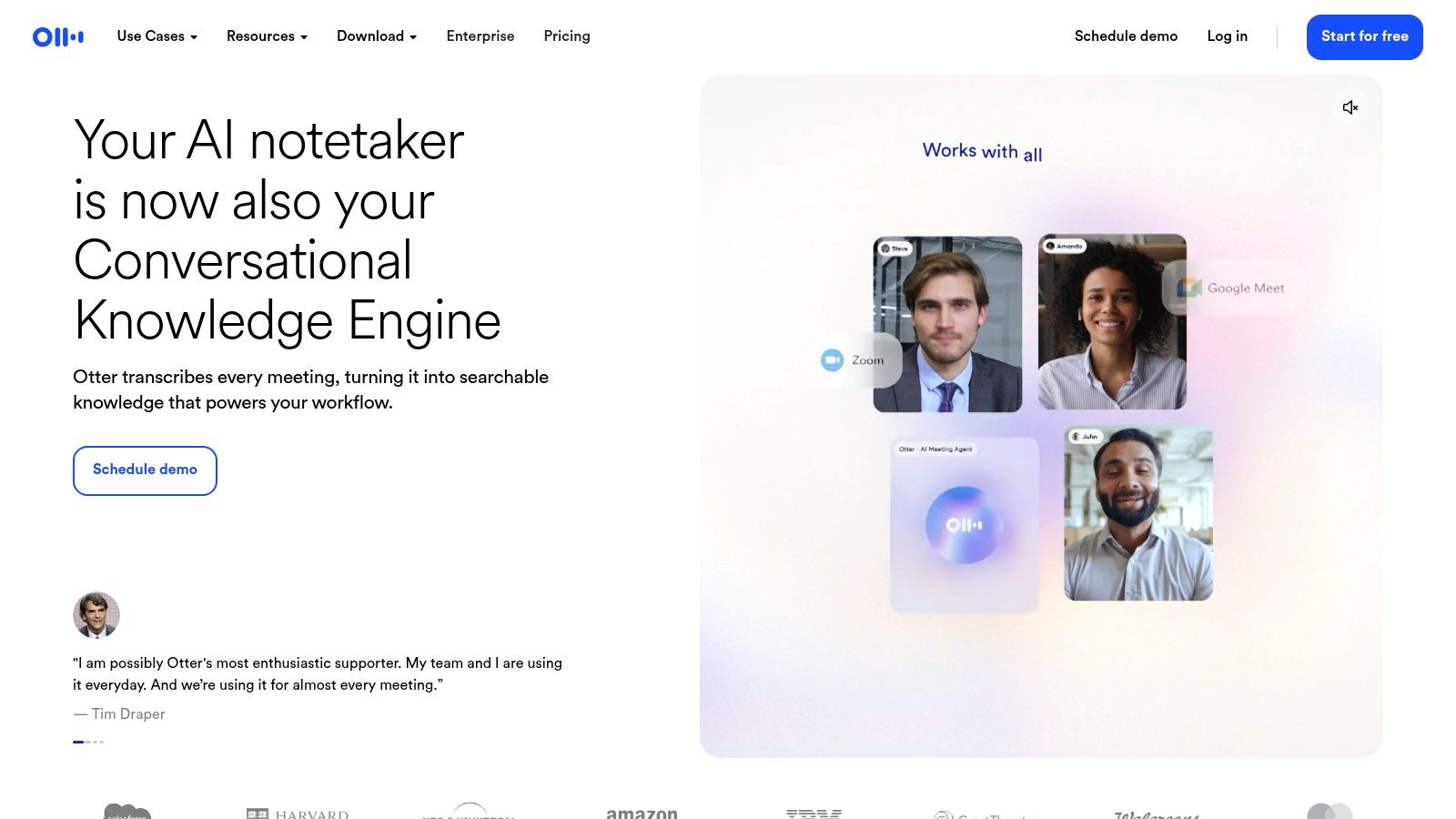
Otter.ai is designed around transcription and searchable notes rather than video production. It can record live lectures, import audio or video, create time-stamped transcripts, label speakers, highlight keywords, and provide AI chat over the transcript.
That makes it useful when the main problem is not capturing a high-quality presentation, but remembering what was said. A student can record an in-person lecture on mobile or use a browser and then search the resulting text instead of replaying the entire file.
Best for fast transcription
Otter fits online and meeting-heavy study routines particularly well. It can work with meeting workflows and shared transcripts, which helps when a lecture takes place through a conferencing platform. Its interface also makes it easier to find a phrase, review a summary, or return to a particular moment than a raw audio player does.
The benefit depends on the input. A nearby microphone and a clear speaker produce a more useful transcript than a distant phone recording in an echoing hall. Specialized terms, accents, overlapping discussion, and student questions may still need correction.
Limitations
Otter isn't a dedicated video editor or institutional lecture archive. It also requires careful review of data retention and privacy settings when recordings include student voices, classroom discussion, or sensitive course content. Institutional guidance emphasizes that recordings may become student records and shouldn't be posted publicly without consent. Authenticated access through an LMS or another controlled platform is safer than treating a lecture like public media.
For a deeper comparison of personal transcription workflows, see Otter.ai alternatives for lecture notes.
9. Notability
Notability is built for the student who wants to write while recording. On iPad, you can handwrite or type notes, annotate PDFs, and capture audio in the same document. The notes stay synchronized with playback, so selecting a written point can take you to the related moment in the lecture.
That changes the review experience. Instead of opening an audio file and trying to remember where a concept appeared, you can use your own notes as navigation points. This is especially useful in lecture-heavy courses where diagrams, formulas, and slide annotations matter as much as the spoken explanation.
Best for synchronized notes
Notability's strength is the connection between capture and annotation. Pencil input feels natural for students who think visually or need to sketch while listening. PDF support keeps slides and handwritten explanations together, while iCloud sync supports access across Apple devices.
Recent versions also offer transcription and AI summaries in supported plans. Those additions can reduce the gap between handwritten notes and searchable text, although the core value remains the time-linked notebook rather than institutional delivery.
Limitations
The best experience is tied to Apple's ecosystem, with limited support outside Apple devices. Some transcription and AI functions require paid tiers, so check the plan before treating them as part of the standard recording workflow.
Notability also isn't designed to manage a university-wide library, control LMS access, or turn a semester of recordings into a class-wide review schedule. If your notes are the center of the workflow, it's excellent. If you want cited Q&A across lectures and textbooks, you'll need a separate study layer.
10. Microsoft OneNote
Microsoft OneNote remains a practical choice because many students already have access to it through Microsoft 365. It lets you record audio, and in some desktop versions video, directly inside a notebook page while you type or handwrite. Notes are time-stamped and linked to playback points, so reviewing a page can take you back to the relevant section of the recording.
The notebook structure also maps well to academic organization. You can create sections and pages for courses, seminars, readings, and assignments rather than storing unrelated audio files in a downloads folder.
Best for free, flexible note synchronization
OneNote works across Windows, macOS, the web, iOS, and Android, although recording capabilities vary by platform. It pairs naturally with Microsoft tools such as Teams, Outlook, Word, and OneDrive. Students who already use that ecosystem may not need another capture application for basic lecture notes.
The infinite canvas is useful for STEM subjects and discussion-based classes. You can place typed notes beside diagrams, handwritten formulas, images, or imported slides, then return to the audio through the time-linked notes.
Limitations
Platform differences matter. Video and system-audio capture may not be available in the same way everywhere, and audio reliability can vary by device. Test the exact version and hardware you plan to use before recording an important lecture.
OneNote also stops short of automated study conversion. It won't, by itself, create a cited Q&A system, automatically build a structured transcript workflow, or schedule flashcard review across classes. It is a strong note synchronization tool, but you may need to export or upload the recording elsewhere when you want deeper search and active recall.
Top 10 Lecture Recording Tools: Feature Comparison
| Platform | Core features | Quality (★) | Price/Value (💰) | Target audience (👥) | Unique selling points (✨) |
|---|---|---|---|---|---|
| 🏆 ClassLecture.ai | Transcripts w/ timestamps, convo Q&A, AI summaries, FSRS flashcards, upload/record, bulk upload | ★★★★☆ | 💰 Free tier (3h/mo); Paid from $17/mo (annual) | 👥 Undergrad/grad students, instructors, study groups | ✨ Chat over your own lectures with cited timestamps; integrated capture→study; privacy-first |
| Panopto | Multi‑stream lecture capture, auto‑indexing, LMS integrations, analytics | ★★★★☆ | 💰 Enterprise / campus licensing | 👥 Universities, IT/admins, large courses | ✨ Campus‑scale capture + detailed viewer analytics and permissions |
| Echo360 | Universal Capture (screen/cam/audio), LMS publishing, engagement tools | ★★★★ | 💰 Institution pricing | 👥 Lecture halls, course admins, institutions | ✨ Dual‑channel capture, device management, classroom workflows |
| YuJa | Browser capture studio, video CMS, LMS integration, cloud delivery | ★★★★ | 💰 Enterprise / tailored licensing | 👥 Higher‑ed IT teams, large libraries | ✨ In‑browser recording + scalable media management for campuses |
| Kaltura Classroom | Multi‑input classroom/desktop capture, LMS publish, central management | ★★★★ | 💰 Enterprise via sales | 👥 Campuses using Kaltura ecosystem, admins | ✨ Seamless publish into Kaltura platform with scheduling & analytics |
| Camtasia (TechSmith) | Screen/cam/system‑audio capture + NLE, quizzes/SCORM export, assets | ★★★★☆ | 💰 Paid license / subscription; edu discounts | 👥 Educators producing polished lectures/tutorials | ✨ Built‑in editor for professional video + interactive quizzes |
| OBS Studio | Scene composition, multi‑input recording, streaming, plugin ecosystem | ★★★★☆ | 💰 Free & open‑source | 👥 Tech‑savvy creators, budget users | ✨ Unlimited free control, extensible plugins, powerful encoders |
| Otter.ai | Live recording, auto‑transcription, speaker labels, summary & search | ★★★★ | 💰 Freemium; affordable Pro & edu discounts | 👥 Students needing fast searchable notes | ✨ Fast auto‑transcripts, keyword highlights, collaboration |
| Notability | Time‑synced audio + handwriting/typed notes, annotation, iCloud sync | ★★★★ | 💰 Paid/subscription (iPad focus) | 👥 iPad students, handwritten note takers | ✨ Tap notes to replay exact audio moment; pencil‑friendly workflow |
| Microsoft OneNote | Audio recording with time‑linked notes, cross‑platform sync, storage | ★★★★ | 💰 Free (Microsoft account) | 👥 General students, Microsoft 365 users | ✨ Free, broad platform support and time‑linked playback |
Choose the Recording Workflow You Will Actually Use
The best software for recording lectures is the one that supports the work you do after capture. A technically impressive recording isn't automatically useful. Students need retrieval, context, and practice. Instructors may need editing and publishing. Institutions need permissions, accessibility review, retention controls, LMS delivery, and a dependable archive.
Choose Notability when synchronized handwritten or typed notes are central to review, especially on iPad. Choose OneNote when you want a flexible, cross-platform notebook and already use Microsoft 365. These tools make it easy to connect a note to the moment it was written, which is often more valuable than a separate recording with no navigation.
Choose OBS Studio for flexible, free desktop capture. It gives you scenes, multiple sources, local files, and extensive configuration, but you'll need to handle testing, storage, editing, transcription, and delivery yourself. Choose Camtasia when the recording is intended to become a polished teaching asset. Its editor is better suited to removing distractions, adding visual emphasis, and producing structured lessons than a basic recorder.
Choose Otter.ai when fast searchable transcription matters more than extensive editing. It can turn live or imported speech into time-stamped notes, but review the transcript and audit privacy settings before using it with sensitive classroom material. For institution-managed delivery, evaluate Panopto, Echo360, YuJa, or Kaltura through the needs of your campus. Their value lies in multi-source capture, centralized management, LMS integration, permissions, analytics, and distribution, not just in recording quality.
Choose ClassLecture.ai when the finished recording needs to become a study assistant. It connects uploaded or browser-recorded lectures with transcripts, timestamped answers, document page references, AI summaries, structured study guides, flashcards, and FSRS spaced review. That makes it the most direct option for moving from capture to active recall instead of stopping at replay.
Use a simple implementation routine regardless of the platform:
- Test microphone placement: Put the microphone close enough to capture the speaker clearly, and check for room echo.
- Record a short sample: Confirm that the voice, presentation, system audio, and camera are all included before the full session.
- Confirm permission: Check institutional rules and obtain the instructor's or participants' consent where required.
- Label files consistently: Include the course, date, topic, and source in each filename or class folder.
- Verify the transcript: Correct technical terms, names, formulas, and sections where the speaker or room made recognition difficult.
- Move the result into review: Create notes, questions, summaries, or flashcards instead of leaving the file untouched in cloud storage.
Educational research shows why that final step matters. One lecture-capture analysis reported that 70% of students watched at least half of recorded lectures, while 22% didn't view any recordings; the same source also describes students using recordings for review and reinforcement rather than treating them only as archives. A separate medical-student survey found that 77% used recordings to understand missed points, 75% to relearn complex concepts, and 62% to rewrite class notes, as reported in the peer-reviewed survey on lecture recordings. Recording creates the opportunity. Search, explanation, and spaced practice make that opportunity useful.
If you want to turn recorded lectures, meetings, notes, and textbooks into searchable transcripts, cited Q&A, AI summaries, study guides, and FSRS flashcards, visit ClassLecture.ai. Upload an existing lecture or record in your browser, then move from passive replay to targeted, source-linked review.
The ClassLecture.ai Team
We build ClassLecture.ai, the AI study assistant that turns your recorded lectures into transcripts, summaries, flashcards, and answers cited to the exact timestamp — so you learn faster from your own professor's words.
Keep reading
10 Lecture Transcription App Options Compared
Compare 10 lecture transcription app options for accuracy, study workflows, pricing, integrations, and privacy before choosing a tool.
Read7 Meeting Recording Software Options Compared
Compare 7 meeting recording software options for students, educators, and teams, including features, limits, pricing, capture methods, and best-fit use cases.
ReadThe 10 Best Audio to Text Converter Tools for 2026
Find the best audio to text converter for your needs. We compare 10 top tools on accuracy, speed, pricing, and privacy for lectures, meetings, and more.
Read