How to Record a Google Meet Call: Guide for Students
Learn how to record a Google Meet call with our step-by-step guide for students. Get tips on saving, sharing, and accessing your recordings in 2026.

You record a Google Meet call by clicking the three-dot More options menu during the meeting, selecting Recording, and confirming, but only if you're the organizer with the right Workspace permissions. Once it's saved, Google places the file in the organizer's Google Drive inside a Meet Recordings folder and notifies participants when recording starts.
That's the short version, but the part students usually need is what comes next. A recording is only useful if you can find it, trust it, and turn it into something you can study from after class or a fast-moving meeting.
Table of Contents
- Why Recording Your Meetings and Lectures Changes Everything
- How to Record a Google Meet Call on Desktop
- Who Can Record Google Meet and Why Permissions Matter
- Recording Google Meet on Mobile and What Changes
- Recording Quality and Privacy Tips You Should Know
- Turning Your Recording Into Study Material
- Frequently Asked Questions About Google Meet Recording
Why Recording Your Meetings and Lectures Changes Everything
The worst moment is always the same. A professor speeds through a dense slide, someone asks a question, and you're trying to listen, write, and keep up with the shared screen at the same time. By the time class ends, your notes are a patchwork of half-sentences and arrows, and the one detail you needed is the one you missed.
That's why recording matters. It gives you a second pass at the material, which is a completely different experience from trying to capture everything live. Google's own recording flow is built around saving the session to Drive and notifying participants when capture begins, so the core idea is clear, the recording is a reference record, not just a convenience feature. The practical win for students is simple, you can revisit the exact words, slides, and discussion when the pressure is gone.
Practical rule: record first, then study second. If you treat the file like finished homework instead of raw material, you'll keep wasting the real value.
The mistake many learners make is stopping at “I have the video.” A lecture recording helps much more when you can search it, summarize it, and pull out the pieces that matter for revision. That's the mindset shift this guide is built around.
How to Record a Google Meet Call on Desktop
The desktop workflow is the cleanest way to record a Google Meet call, and it's the one most students should learn first. Zapier's walkthrough matches the in-meeting flow you'll use, open the meeting on a computer, go to Activities or More tools depending on the interface, choose Recording, then click Start recording and confirm in the pop-up. Participants get notified as soon as recording starts, which is useful for transparency and also a reminder that the host controls the process. Zapier's Google Meet recording guide lays out that sequence clearly.
If you're looking for the button and don't see it right away, don't panic. Google Meet can surface recording from the Activities panel, and some interfaces place the option under More tools. The point is to stay inside the meeting controls, not hunt through browser menus or external extensions when the built-in feature is available.

The desktop click path that actually works
Start with the meeting already open in your browser or desktop app. Then check the lower controls for Activities, open it, and select Recording. If your version uses the alternate layout, the same option may sit under More tools, but the action is the same, start the recording from inside the meeting.
After you click Start recording, Meet asks you to confirm. That confirmation matters because Google ties the recording to the organizer's Drive and notifies everyone in the call. When you're done, return to the same menu and stop the recording. The file processes after the meeting and lands in Meet Recordings inside Drive, which is the folder worth checking first when you're trying to find a lecture later.
Use the recording setup for study, not just storage
Some Meet interfaces also let you enable captions or transcript-related options before you start. If your real goal is to review a lecture, turn those on when they're available. Video alone is useful, but captions and transcripts make the recording far easier to revisit during exam prep.
A small habit helps here. Start the recording a minute early if you can, then make sure the audio is clean before the lecture gets going. That gives you time to catch a problem while it's still fixable instead of discovering it after class ends.
Who Can Record Google Meet and Why Permissions Matter
Google Meet recording isn't a universal button that every participant sees. Google's help guidance treats recording as a Workspace-controlled capability, not a consumer feature that everyone gets by default, and the permission sits with the organization's settings and the right account role. In practice, the meeting organizer in the same organization is the person most likely to be able to start it, and for Education accounts, Google's guidance points to teachers as the people who can record. Google's Workspace recording guidance makes that permission structure explicit.
Why the button disappears
If you join a meeting and the recording option is missing, that usually isn't a glitch. It means your account probably doesn't have the right permission, your Workspace edition doesn't include recording, or the organizer has disabled it. Since the feature is controlled at the organizational level, no amount of clicking around in the meeting itself will make the button appear if the account isn't allowed to use it.
That matters because students often assume Meet works like a personal video app. It doesn't. Google's support and admin materials position Meet around managed Workspace deployments, and Google also provides separate admin-side quality and statistics tools for detailed meeting records in the Admin console. That's a reminder that recording in Meet is part of an enterprise-style system, not an open-ended personal feature.
If you don't see the recorder, ask who owns the meeting, not whether you clicked the wrong menu.
| Account Type | Can Record | Notes |
|---|---|---|
| Workspace organizer with recording enabled | Yes | The organizer is usually the safest person to start the recording. |
| Education teacher | Yes | Google's guidance gives teachers the recording role in Education setups. |
| Student participant | Usually no | Students typically need the organizer or teacher to record. |
| Participant without organizer permissions | No | The button may not appear at all. |
| Account without Workspace recording access | No | The built-in recorder won't be available. |
If you're the one running the meeting, the fix is often administrative. If you're just attending, the practical move is to ask the host to record it for the group before the session starts, not after the key part is already over.
Recording Google Meet on Mobile and What Changes
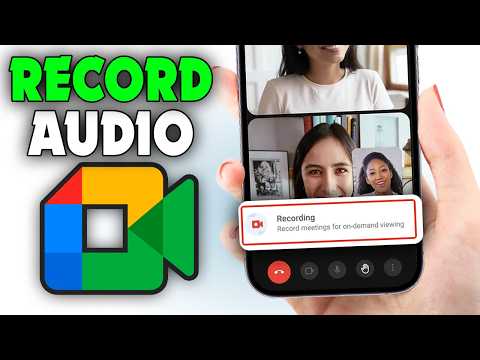
A phone can save the day, but it changes the workflow. Google's Android support page has a separate mobile path for Meet recording, yet the built-in recorder still works best on desktop, which is why many students fall back to the phone's screen recorder when they need a backup or they are joining from a tablet. Google's Android Meet recording support covers that mobile-specific path.

The trade-off is straightforward. Device-level screen recording captures what is visible on the screen, which helps in a pinch, but it is not the same as a clean built-in Meet recording that drops into Drive for later use. On a phone, you also have to deal with battery drain, notifications, and the possibility that the device dims, locks, or interrupts the session. If you have ever lost a class clip because the phone did something unhelpful at the wrong time, you already know why mobile recording feels less dependable.
What to expect from longer sessions
Long sessions are where mobile becomes less forgiving. Google's recording workflow is built for meeting capture, not for treating a phone like a lecture rig, so if a class or workshop runs long, you should plan for a split recording or a backup capture path instead of trusting one device without checking it first. That matters less for a short class and more for review sessions, labs, and conference-style meetings that keep going.
For students, the choice is quality versus convenience. Desktop gives you the native path and a cleaner handoff into Drive. Mobile gives you flexibility, but it is worth testing before you rely on it for something you need to study from later. The post-recording step matters too, because a usable file is only the starting point. If your goal is to turn a lecture into notes, transcript-first tools such as this guide to recording lectures in an app are often the part that makes the recording useful.
Recording Quality and Privacy Tips You Should Know
Good recordings start before you click record. A quiet room makes a bigger difference than people expect, because messy background sound turns into messy playback, and messy playback turns into weak notes. If you're trying to study from the file later, clear audio is the top priority.
Before a long lecture, test the recording briefly. You don't need a full rehearsal, just enough to confirm the microphone is picking up speech clearly and the video isn't frozen or blank. If you're the organizer, checking early saves you from discovering a silent file after everyone has logged off.
Privacy should be handled directly
Google Meet notifies participants when recording starts, and that's the right baseline for education settings. Say why you're recording, especially if the call includes discussion, review, or sensitive planning. People are more comfortable when the reason is clear and the notification isn't treated like a surprise.
Store the file with care once it's saved. Drive access should stay private unless you have a real reason to share it, and the recording should live in a folder with the right permissions. If you only need the spoken content, a transcript or captions are faster to review than a raw video file, and they make it easier to pull out the parts that matter. For a practical way to turn spoken lectures into text, see this audio to text guide.
Practical rule: the best recording is the one you can actually use later, not the one that just exists in Drive.
A final habit helps more than most students expect. Name and organize the file right away if you're the one managing it, because a recording that's buried, unlabeled, or shared too widely stops being useful almost immediately.
Turning Your Recording Into Study Material
The recording is only the starting file. The value comes after the meeting ends, when you turn it into something searchable, skimmable, and easy to quiz yourself on. Google's newer Meet options point in that direction, with features like Include captions, Also start transcribing, and Take Notes with Gemini, which move the workflow from simple capture toward AI-assisted documentation.
What students should do after the meeting ends
Start with the transcript if you have one. A text version lets you scan for topics, definitions, examples, and the moments where the lecturer slowed down or repeated a point. From there, build your review around the ideas that were discussed, not the full runtime of the video.
That shift saves time fast. One recording can become searchable notes, flashcards, and question-and-answer practice you can reuse before an exam. If you want a practical workflow for that, this guide to turning lecture recordings into notes shows how to move from raw audio to study material without doing every step by hand.
Why this matters more than the recording button
A lot of guides stop at the button press. That misses the part students need. If the file just sits in Drive, you end up reopening it, scrubbing through long stretches, and trying to reconstruct meaning from a timeline instead of a study aid.
Treat the recording as input. Use it to generate text, break concepts into smaller chunks, and review the conversation the same way you would review your own notes, except with the gaps filled in. That is the difference between storing a class and learning from it.
Frequently Asked Questions About Google Meet Recording
Can you record a Google Meet call without the organizer allowing it?
Not with Meet's built-in recorder. The feature is controlled by Workspace permissions, so if you're not the organizer, teacher, or otherwise authorized account holder, the button usually won't appear. In that case, the practical move is to ask the host to record it or use a separate method that fits your device and policy.
What should you do if the recording button is missing?
Check the account first. If you're on a personal account or a Workspace plan without recording access, the feature won't show up. If you're in a school or organization, ask the admin or organizer whether the feature is enabled for that meeting.
Are there free alternatives if Meet recording isn't available?
Yes, but the trade-offs matter. Screen recording on your device can work when the built-in Meet feature isn't available, although it usually gives you a less polished file than a native recording. If your goal is studying, not just saving video, choose the option that gets you the clearest audio and the easiest path to text afterward.
Where does the recording go after the meeting ends?
Google saves it to the organizer's Google Drive in a Meet Recordings folder. That's the first place to check if you're waiting for a lecture or meeting replay. If you're not the organizer, you'll usually need them to share it with you.
If you want to do more than just store meeting video, ClassLecture.ai helps you turn a lecture or meeting into searchable text, study questions, and flashcards you can use. Upload your recording, review it with Q&A, and build a study routine around the exact material you heard, then visit ClassLecture.ai to try it for your next class or meeting.
The ClassLecture.ai Team
We build ClassLecture.ai, the AI study assistant that turns your recorded lectures into transcripts, summaries, flashcards, and answers cited to the exact timestamp — so you learn faster from your own professor's words.
Keep reading
How to Record Zoom Call for Better Study
Learn how to record zoom call sessions for study. Master local vs cloud capture, audio settings, permissions, and turning lectures into AI study guides.
ReadHow to Record Class Lecture Clearly and Study Smarter
Learn how to record class lecture audio clearly on any device, get permission, improve quality, and turn recordings into searchable study material.
ReadMeeting Recording Transcription Free: 10 Tools Compared
Compare 10 meeting recording transcription free tools: plan limits, bot-free capture, transcript quality, and privacy trade-offs before you choose.
Read