How to Turn Lecture Recording to Notes That Actually Stick
Learn how to turn lecture recording to notes with proven workflows for transcription, timestamped indexing, summaries, flashcards, and smart study habits.

Rewatching a lecture at 1.5x speed feels productive, but it often leaves you with familiarity, not usable memory. The better move is to treat the recording as raw material, then turn it into something you can retrieve from fast, question by question, while the class is still fresh. That lines up with long-standing university guidance to review within 24 hours and reorganize notes into something structured, not just replayed noise, as described in University of Michigan's CRLT note-taking guidance.
Table of Contents
- Why Rewatching Your Lecture Is Not Studying
- Capture and Transcribe the Recording Quickly
- Chunk the Lecture Into 3-7 Minute Study Segments
- Query the Transcript With Timestamped Citations
- Turn Highlights Into Outlines, Study Guides, and Flashcards
- Choosing the Right Tool for the Job
- Privacy, Consent, and Policy Before You Hit Upload
Why Rewatching Your Lecture Is Not Studying
The most common mistake is treating playback like progress. You hear the same explanation again, recognize it, and walk away feeling better, but recognition isn't recall. By exam day, that comfort often disappears because you never forced yourself to pull the idea back out of memory on your own.
Raw material beats passive repetition
A lecture recording is useful because it preserves the professor's wording, examples, and emphasis. It is not useful as an endless background stream. The work starts when you convert that recording into a transcript, an outline, and then recall prompts you can test yourself on.
Practical rule: If you can't ask a question about the lecture without reopening the video, you're still in consumption mode, not study mode.
That's why retrieval-first workflows outperform passive rewatching in practice. You read a transcript, pause, summarize from memory, and build flashcards from the parts you couldn't explain cleanly. The note-taking logic behind that shift isn't new, either. University guidance has long pushed students to review quickly, compare notes, and reorganize ideas into clearer structures within 24 hours, which is exactly what a recording-to-notes workflow is trying to preserve.
The mindset shift matters more than the tool. If you want a quick sanity check on how that study mindset shows up in a more practical system, the approach is laid out well in this study-smarter workflow. The recording is just the input. The study session happens when you force the material into your own memory, your own outline, and your own test questions.
Capture and Transcribe the Recording Quickly
The first job is simple, get the file out of the class platform and into a transcript engine before the lecture starts fading in your head. Zoom, Panopto, phone recordings, MP3, and MP4 all work as starting points if the audio is clean enough to follow. Bad input still matters, though, because a transcript can only be as clear as the speech it receives.
Start with the best file you already have
If the lecture already exists in Zoom or Panopto, use that version instead of rebuilding from scratch. If you recorded on your phone, keep it close to the speaker and away from background noise. A transcript tool can help only after the audio is captured in a form that still preserves the professor's words, pauses, and section changes.
For a transcription pass, speed changes the whole workflow. ClassLecture.ai's audio-to-text workflow states it can process about a 1-hour recording in roughly 5 minutes for transcription. That kind of turnaround matters because it keeps the lecture inside the same-day review window rather than pushing it into tomorrow's backlog. Once the transcript lands, you want more than plain text. You want searchable lines, speaker turns, and timestamp markers that let you jump back to the exact spot where a definition, example, or correction was said.
Here's the important part, don't treat the transcript as the finished product. Treat it like a map. A good transcript lets you search for the term the professor used, then click straight to the moment it appeared, which saves you from replaying long stretches just to find one sentence.
If the tool gives you timestamps, searchable text, and clean section breaks, you've got something you can study from. If it only gives you a wall of text, you still have work to do.
The whole point is to make the recording useful while the class is still live in your memory. Fast transcription doesn't replace note-making, it gives you a structure you can start reshaping the same day.

Chunk the Lecture Into 3-7 Minute Study Segments
A long recording is hard to process because the brain drifts into passive listening. Chunking fixes that. Academic-skills guidance recommends working in 3-7 minute blocks, then pausing to identify the main idea, the supporting evidence or example, and a summary in your own words, which is a cleaner process than trying to digest the whole lecture at once.
Work in short stops, not a full replay
Use the transcript or audio timeline and stop every few minutes. After each segment, write one sentence for the central claim, one line for the proof, example, or equation, and one short paraphrase that sounds like you. That third line is the one most students skip, and it's the one that shows whether you understood the point.
A chunked method also catches the classic trap of verbatim copying. When you try to transcribe everything in a single run, you stop thinking and start typing. When you work in short blocks, you keep deciding what matters, which is the part that improves recall later.
A practical way to use this is to reserve one note page per lecture and divide it into repeating blocks. In each block, keep three labels: Main idea, Support, and My wording. That simple structure forces you to compress the lecture into something you can revisit quickly before a quiz or office hours.
Don't overbuild it. If a section of the lecture is dense, the goal isn't to rewrite the professor's voice sentence by sentence. The goal is to understand enough to explain it back without reopening the recording. That's also why this step works well right after transcription. You already have the raw language, so your job is to convert it into meaning instead of memory noise.
Query the Transcript With Timestamped Citations
Once the transcript exists, the most effective move is to stop rereading it linearly. Ask it questions. Look for one concept, one definition, one example, and one place where the professor clarified something important. Timestamped citations make this much easier because they let you jump from the answer back to the exact point in the lecture.

Ask questions, then verify the wording
A useful pattern is to query one major concept at a time. For example, if the professor introduced a theory, ask what it means, what problem it solves, and which example proved it in class. The answer should come back with a timestamp, so you can click directly to the source and confirm the phrasing yourself.
That matters because lectures often contain details textbooks skip. A professor may define a term differently, emphasize a boundary case, or use a class-specific example that becomes test material later. A transcript grounded in the recording keeps those details attached to the professor's actual wording instead of flattening everything into generic study language.
Useful habit: One concept, one question, one timestamp. If the answer is fuzzy, go back and ask the transcript to show the exact line.
The workflow becomes retrieval-first instead of review-first. You're not asking, “What did I hear?” You're asking, “What can I pull back out of the lecture on demand?” That tiny shift makes the transcript function like a searchable memory aid rather than another file to skim and forget.
The payoff is speed and precision. Instead of scanning the whole lecture again, you move directly to the part that matters, confirm it, and then decide whether it belongs in your outline, your flashcards, or your study guide.
Turn Highlights Into Outlines, Study Guides, and Flashcards
The transcript is still too raw to study from comfortably. The next step is synthesis, which means lifting the best lines, the professor's examples, and your own chunk summaries into formats that are easier to review under pressure. That usually means an outline for structure, a study guide for explanation, and flashcards for recall.
Build from the transcript, not from memory alone
Start with the highlighted lines and sort them by topic. If the lecture had three major themes, make three outline branches. Under each one, place the professor's key phrasing, then add your own short paraphrase so the idea is easier to revisit later. The outline shouldn't feel polished. It should feel usable.
From there, convert the high-value points into study cards. Keep the front specific and the back short. A weak card asks for a broad essay answer, while a strong card asks for one definition, one comparison, or one example. If the professor used a distinctive phrase in class, keep that wording in the card so you're practicing the language the course used.
For a dedicated card-making workflow, ClassLecture.ai's flashcard guide shows how lecture content can be transformed into study cards after transcription. That fits the broader method here, because the lecture recording is the source, but the cards are the thing you review before an exam.
The last pass is the study guide. Use it for the part of the lecture that needs explanation, not just recall. If a topic has steps, causes, exceptions, or comparisons, the guide should group them clearly so you can scan it fast the night before class. If a section doesn't help you answer a question or explain a concept, leave it out.

A simple post-lecture checklist
- Select key passages. Pull the lines that define terms, show examples, or correct a common mistake.
- Draft structured outlines. Organize the lecture by topic, not by page order.
- Generate study cards. Turn the most testable ideas into short prompts and answers.
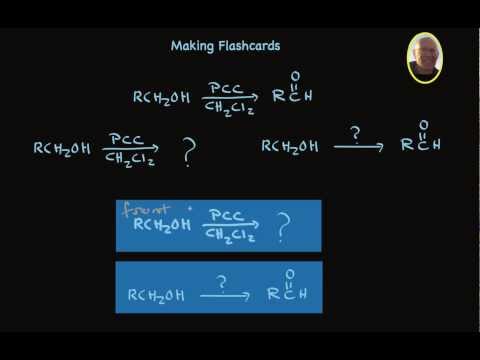
When this is done well, the recording stops being something you “watched” and starts being something you can test yourself against. That's the study artifact.
Choosing the Right Tool for the Job
No single tool handles every stage equally well. Some tools are stronger at capture, some are better at transcript analysis, and some are built to take the recording all the way to notes, quizzes, and flashcards. The right choice depends on whether you need live capture, transcript cleanup, or a full study kit after class.
Match the tool to the task
If you're recording live in class, the first priority is getting usable audio into a file format you can trust later. If you already have a transcript, the job changes. Now you need search, summarization, and a way to jump back to the source. General AI assistants can help with the second part, but they usually don't give you the class-specific organization or lecture-linked workflow you need for repeated exam prep.
That's where purpose-built lecture tools earn their place. A platform built around lecture recordings can keep the transcript, citations, summaries, quizzes, and flashcards tied to the same class and the same session. A general chat assistant can still be useful for drafting summaries or cleaning up notes, but it's less helpful when you want the exact timestamp where the professor said something. In practice, students usually need both capture and review, not just one or the other.
| Job | Best For | Watch Out For |
|---|---|---|
| Live capture during class | Students who need a recording first and a transcript later | Weak audio makes every downstream step harder |
| Document analysis on an existing transcript | Fast cleanup, summarizing, and question answering | A generic tool may lose lecture-specific context |
| End-to-end lecture recording to notes workflow | Students who want transcripts, study guides, quizzes, and flashcards in one place | Too much automation can make you skip active review |
For students with lecture-heavy schedules, the decision usually comes down to friction. If you have to move the file across several apps before you can study, you're more likely to stop early. If the tool keeps the transcript, the timestamps, and the study outputs together, you're more likely to come back to it before the next class.
ClassLecture.ai is one option in that category. It accepts lecture audio or video, produces searchable transcripts, and ties answers to exact timestamps, so you can move from recording to notes without rebuilding the workflow from scratch.
Privacy, Consent, and Policy Before You Hit Upload
The workflow only works if you're allowed to record in the first place. Course policy, instructor consent, disability accommodations, and institutional rules all matter before any file goes online. That's the part most how-to guides skip, even though it's the part that can cause the most trouble.

Check permission before convenience
Start with the class rule, then the professor's rule, then your school's accessibility guidance. If recording is allowed, keep that permission documented in a way you can find later. If the class includes group discussion or peer comments, ask whether you need additional consent before capturing anyone else's voice.
This also matters for students using transcription as an assistive technology. University disability offices often frame recording and note-taking apps as support tools, not just productivity hacks, so it's worth asking what accommodations apply before you upload anything. For a sensitive course, privacy hygiene matters too. Check whether a tool stores files securely, whether access is tied to your account, and whether the transcript can be shared by accident.
The cleanest habit is to ask four questions before upload:
- Is recording allowed in this course? Confirm the instructor's policy first.
- Do I need peer consent? Especially in seminars, labs, and small-group sessions.
- Where is the file stored? Keep sensitive material in encrypted, account-based storage.
- Does the course have accessibility guidance? Follow that process if recording supports an accommodation.
That kind of check takes less time than fixing a bad assumption later. It also keeps the workflow ethical, which matters just as much as the study result. When the rules are clear, the recording-to-notes process becomes something you can repeat all semester without guessing.
The lecture is raw material. Your job is to turn it into a study artifact without skipping the permission step.
If you want a faster way to turn lecture recordings into searchable notes, summaries, quizzes, and flashcards, try ClassLecture.ai and see how the transcript-first workflow feels on one of your own classes. Upload a lecture, jump to timestamped answers, and build a study kit that's ready before your next class session.
The ClassLecture.ai Team
We build ClassLecture.ai, the AI study assistant that turns your recorded lectures into transcripts, summaries, flashcards, and answers cited to the exact timestamp — so you learn faster from your own professor's words.
Keep reading
The 9 Best AI Powered Quiz Generator Tools for 2026
Find the best AI powered quiz generator for your class or training. We compare 9 tools for creating quizzes from text, lectures, and URLs. Start now.
ReadLecture Notes AI Explained How It Turns Lectures Into Study
Discover what lecture notes AI does, how it works, its benefits and limits, and how to turn recordings into transcripts, flashcards and Q&A.
ReadFlashcards for Study Notes That Actually Stick
Learn how to turn class notes and recordings into flashcards for study notes that boost recall with manual and AI workflows, spacing, and review tips.
Read