Zoom Meeting Transcript Explained and How to Use It
Learn what a Zoom meeting transcript is, how transcription works, permissions, and how to use your Zoom meeting transcript for study and review.

You've just finished a Zoom lecture, and one question is still bothering you. The professor explained a definition somewhere in the middle of the recording, but you can't remember whether it came before or after the example. Rewatching the entire session feels like the only option, so you drag the playhead back and forth, hoping to land on the right moment.
A Zoom meeting transcript changes that experience. Instead of treating the recording as a long video, you can treat the spoken content as a searchable study guide. Find a keyword, jump to its timestamp, check the surrounding explanation, and turn the important idea into a question or flashcard.
That distinction matters because Zoom meetings generate a large amount of spoken material. Independent 2026 statistics compilations report about 3.3 trillion meeting minutes per year on Zoom and roughly 300 million daily meeting participants, with average meetings around 52 minutes and about seven participants. These figures are reported by Affinco's Zoom statistics compilation. For students, instructors, and study groups, even one recorded lecture can contain more useful information than anyone can capture in handwritten notes.
This guide starts with the basic concept, then separates live captions from saved transcripts, explains permissions and retention, and shows how timestamps and speaker labels support active study. It also covers accuracy, because a transcript can help you find an answer quickly without automatically being reliable enough to quote without checking.
Table of Contents
- Introduction Why Your Zoom Meetings Deserve More Than a Replay
- What a Zoom Meeting Transcript Really Is
- How Zoom Transcription Works From Live Captions to Cloud Records
- Privacy Permissions and Who Controls Your Transcript
- Turning Transcripts Into Study Tools With Timestamps and Highlights
- How Accurate Is Your Transcript and When to Double Check
- Conclusion Your Next Zoom Meeting as a Searchable Study Guide
Introduction Why Your Zoom Meetings Deserve More Than a Replay
A recording preserves everything, but it doesn't tell you where everything is. A transcript adds an index to the recording, so you can search for a phrase instead of relying on memory or watching the full session again.
Suppose your biology instructor discusses “competitive inhibition” during a class meeting. You search the transcript for that phrase, find the matching passage, and select the timestamp. The recording opens at the relevant moment, where you can hear the explanation, inspect the slide, and read the surrounding discussion. The transcript becomes a map, while the recording remains the source you can return to for tone, visuals, and context.
Study principle: Use the transcript to locate information, then use the recording to verify meaning.
This approach is especially useful when a meeting includes several voices. A lecture may contain questions from students, corrections from the instructor, and examples introduced by a teaching assistant. Without speaker information, the text can feel like a single stream. With timestamps and speaker attribution, you can separate the explanation from the question that prompted it.
A transcript also supports students who can't attend live, learners reviewing in a second language, and anyone who needs to revisit a dense technical explanation. It doesn't replace listening. It reduces the friction between remembering that something was said and finding exactly where it was said.
Zoom's product history reflects this shift. Its support documentation describes a Recordings & Transcripts area where cloud recordings and generated transcripts can be managed, searched, downloaded, or deleted. That turns meeting speech into an archive rather than a temporary aid used only during the call.
The important caveat is simple. Zoom can't reconstruct a conversation that wasn't recorded or transcribed while it happened. A transcript is created through an intentional setting, an eligible account configuration, or a separate recording workflow. If you want a dependable study record, you need to plan for capture before the lecture begins.
What a Zoom Meeting Transcript Really Is
Think of a recording as a book on a shelf and a transcript as its interactive index. The recording contains the full experience, including slides, pauses, demonstrations, and voices. The transcript lets you search the spoken words, select a passage, and move back to the corresponding moment.
A useful transcript usually combines four elements:
- Searchable text: You can look for a name, concept, phrase, or action item.
- Timestamps: Each passage connects to a point in the audio or video.
- Speaker labels: The text indicates who spoke, when the system can identify speakers.
- Audio synchronization: The written passage stays aligned with the original recording.

Captions and transcripts serve different jobs
Live captions appear while people are speaking. Their purpose is immediate readability and accessibility during the meeting. They help you follow a fast explanation, catch a phrase you missed, or read along when listening is difficult.
A saved transcript retains speech-to-text data after the meeting. It can become part of the meeting record, subject to the host's settings, the administrator's controls, and the available product features. Zoom's updated documentation explains that captions support real-time reading while transcripts preserve spoken content, and that transcripts aren't enabled by default. A host or administrator must turn them on, participants may request access, and the transcript can be deleted when transcription stops. These distinctions are described in Zoom's guidance on captions and transcripts.
That means seeing words on your screen during a class doesn't automatically guarantee that you'll have a downloadable document afterward. Captions are like subtitles displayed on a classroom monitor. A saved transcript is the set of notes stored for later use.
What the file contains
Zoom cloud recordings are commonly exported with .vtt caption files, which preserve time alignment for each utterance. That alignment lets you connect a sentence to the moment when it was spoken. In broader transcription systems, speaker diarization addresses the question of “who spoke when,” while segment or word timestamps support precise searching and speaker-turn analysis, as explained in this overview of AI meeting note workflows.
The result isn't a block of text. It's a navigational layer over the recording, and that layer is what makes a transcript useful for studying.
How Zoom Transcription Works From Live Captions to Cloud Records
There are two routes people often call “Zoom transcription,” but they produce different results. Live auto-transcription supports reading during the meeting. Cloud recording transcription creates a retained record connected to a recording.

The two workflows side by side
| Feature | Live Auto Captions | Cloud Recording Transcript |
|---|---|---|
| Main purpose | Real-time readability during the meeting | Searchable review after the meeting |
| Timing | Appears while people speak | Generated from a recorded meeting |
| Permanent record | Not guaranteed | Stored with the eligible cloud recording |
| Study use | Follow the lecture live | Search, review, quote, and revisit content |
| Access | Controlled during the meeting | Managed through recording and transcript permissions |
Live captions are useful when you need immediate support. A student can read a complex sentence as the lecturer says it, while a participant can follow along despite imperfect audio. But if the text isn't saved, it disappears as a study resource when the meeting ends.
Cloud transcription follows a different path. The meeting is recorded, Zoom processes the audio, and the resulting transcript is associated with the cloud recording. Zoom's documentation says administrators can manage these materials in the Recordings & Transcripts area, search by meeting ID, host email, topic, or keywords, and download or delete available files. The Zoom meeting transcript management documentation describes that portal workflow.
For a practical walkthrough of turning a recording into usable text, see this guide to transcribing Zoom recordings.
A simple prediction rule helps: if your goal is only to understand the meeting as it happens, live captions may be enough. If your goal is to search the lecture tomorrow, you need a saved transcript, which usually depends on recording and the relevant account or workspace settings.
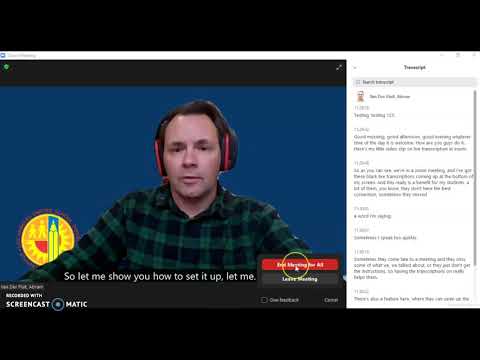
The most common disappointment happens after the call, when someone expects Zoom to create a transcript retroactively. It can't. If the audio wasn't captured through recording or an active transcription workflow, there may be no source from which to generate the text.
Privacy Permissions and Who Controls Your Transcript
A transcript isn't just a study file. It's also a record of what people said, so Zoom places control with hosts, administrators, and workspace policies. Those controls determine whether transcription starts, who can access the result, and whether the data remains available later.

A decision flow before the lecture
Before an important class or study meeting, check the following:
- Ask whether the meeting will be recorded. A recording creates the audio source needed for later transcript generation.
- Confirm that transcription is enabled. The host or administrator may control this setting, and it isn't automatically active for every meeting.
- Ask how participants receive access. You may be able to view the transcript through a shared recording page, download it, or request permission from the host.
- Clarify retention. A transcript may be deleted by an authorized person or affected by workspace policies.
If you're a participant, a short request can prevent confusion: “Will this meeting have a saved transcript available afterward? I'd like to use it to review the lecture.” That question is more precise than asking whether captions will be turned on, because captions and retained transcripts aren't the same feature.
What hosts and administrators should decide
Hosts and administrators need to balance convenience with consent and data governance. They may decide whether transcription is allowed, whether participants are notified, and which users can view, download, or delete the resulting record. Zoom's current controls also include AI Companion retention choices, including whether transcript data can be retained for other AI services and whether hosts can access or delete transcripts.
Students should avoid assuming that a transcript is private because they can see it. A shared recording link may expose both video and text to the audience selected by the host. Before copying passages into notes, check that you have permission to use and share the material.
For a clearer look at how an academic study platform handles submitted learning content, review ClassLecture.ai's privacy information. The broader lesson is straightforward: capture, access, and retention are separate decisions.
Turning Transcripts Into Study Tools With Timestamps and Highlights
A raw transcript becomes valuable when you ask it to perform a study job. Don't read it from top to bottom as if it were a polished textbook. Use it to locate ideas, test your memory, and return to the original explanation when the wording matters.

Build a retrieval loop
Suppose your economics lecture covers inflation, interest rates, and purchasing power. After class, search the transcript for “purchasing power.” Read the matching passage, open its timestamp, and listen to the explanation around it. Then close the transcript and write what the concept means in your own words.
That sequence creates active recall:
- Search: Find the concept you remember needing.
- Jump: Use the timestamp to hear the original context.
- Explain: Write an answer without copying the passage.
- Check: Reopen the transcript and recording to correct omissions.
- Review: Turn the question into a flashcard for later practice.
The timestamp matters because it prevents a common study error. A short sentence may look clear in isolation but depend on an example, qualification, or correction that came immediately before it. Returning to the recording protects you from treating a fragment as the complete argument.
Use speakers as context clues
Speaker labels help you distinguish a professor's explanation from a student's question. They can also reveal the structure of a discussion. If the transcript shows a student asking about an exception and the instructor responding with a clarification, save both parts together.
Diarization isn't perfect, especially when people interrupt one another. Treat speaker labels as navigation aids, then verify the voice when attribution affects your notes.
For exam preparation: Turn instructor explanations into “why” questions, not just definition cards. The transcript helps you find the answer, while your memory supplies it.
You can also highlight passages by function rather than by color alone:
- Definitions: Terms the instructor explicitly explains.
- Examples: Situations that make an abstract idea concrete.
- Corrections: Points where a misconception is challenged.
- Exam signals: Topics connected to assignments, review prompts, or repeated emphasis.
- Open questions: Areas that still need clarification from a textbook or instructor.
A tool such as AI meeting notes for study workflows can extend this process by organizing captured material into searchable notes, summaries, questions, or flashcards. ClassLecture.ai can accept Zoom audio or video, produce a timestamped transcript, and support questions over the uploaded material. Use any generated answer as a starting point, then verify it against the transcript and recording.
The strongest workflow is not “generate notes and forget the lecture.” It's locate, listen, explain, and review.
How Accurate Is Your Transcript and When to Double Check
A transcript can be highly useful without being perfectly reliable. Speech recognition has to interpret microphones, accents, background noise, technical vocabulary, pauses, interruptions, and people speaking at the same time. Those conditions vary from one meeting to another, so accuracy shouldn't be treated as a fixed property of Zoom.
Independent testing cited by a university IT office found that Zoom AI Companion transcription was accurate about 85% of the time, while transcription without AI Companion was about 48% accurate. The same Zoom transcription accuracy guide reports that third-party transcription of imported Zoom recordings ranged from roughly 75% to 96%, depending on the application.
These figures are useful comparisons, not guarantees for your lecture. They show why a transcript is safest as a searchable draft. It can point you to the right part of the recording, but it may miss a technical term or alter a person's name.
A quick verification routine
Double-check any passage that affects your grade, research, or responsibilities:
- Names and terminology: Compare proper nouns, formulas, acronyms, and specialized vocabulary with the slide or textbook.
- Negations: Watch for missing words such as “not,” because one small error can reverse the meaning.
- Numbers and dates: Listen again rather than trusting the text alone.
- Action items: Confirm who agreed to do what and by when.
- Speaker identity: Verify attribution when the statement will be quoted or evaluated.
Audio quality often determines how much cleanup you'll need. Encourage one speaker at a time, use a clear microphone, reduce background noise, and avoid reading a generated transcript as if it were an edited publication.
For a casual review, an imperfect transcript may be enough to find the relevant explanation. For an assignment, formal record, accessibility resource, or research quotation, listen to the original audio and correct the text before relying on it.
Conclusion Your Next Zoom Meeting as a Searchable Study Guide
A Zoom meeting transcript is more useful when you stop treating it as a downloaded text file. It can serve as a searchable index, a timestamp map, a speaker-aware record, and the raw material for active recall.
Start before the next class. Ask whether the meeting will be recorded, confirm that a saved transcript can be created, and understand who controls access and retention. During the lecture, keep the recording and transcript workflow in mind. Afterward, search for important concepts, jump to their timestamps, listen to the surrounding explanation, and write questions from memory.
A practical routine might look like this:
- Capture intentionally: Make sure recording or transcription is enabled through the host or approved tool.
- Locate efficiently: Search the transcript for concepts, names, and assignment-related language.
- Verify carefully: Check technical terms, figures, names, and speaker attribution against the recording.
- Study actively: Convert explanations into questions, summaries, and flashcards.
- Review later: Return to difficult timestamps instead of replaying the entire meeting.
The captions versus transcripts distinction remains the key starting point. Captions help you follow the live conversation. A saved transcript helps you retrieve and study it later. Neither removes the need for judgment, especially when the audio is noisy or the topic is technical.
Once you build this habit, a recorded lecture becomes more than something you can replay. It becomes a source you can search, question, verify, and revisit when you need it.
ClassLecture.ai turns uploaded or recorded Zoom content into searchable transcripts, timestamp-cited Q&A, summaries, study guides, and flashcards. Try the capture-to-study workflow with your next lecture by visiting ClassLecture.ai.
The ClassLecture.ai Team
We build ClassLecture.ai, the AI study assistant that turns your recorded lectures into transcripts, summaries, flashcards, and answers cited to the exact timestamp — so you learn faster from your own professor's words.
Keep reading
Taking Meeting Notes: A Practical Guide for 2026
Master taking meeting notes with proven methods, real-world workflows, and AI tools that turn discussions into actionable results without losing time.
ReadHow to Write a Summary of a Meeting
Learn how to write an accurate summary of a meeting using transcripts and AI. Discover capture, editing, and automation tips with ClassLecture.ai.
ReadHow to Record Class Lecture Clearly and Study Smarter
Learn how to record class lecture audio clearly on any device, get permission, improve quality, and turn recordings into searchable study material.
Read