Can I Record a Meeting? When It Is Legal and How to Do It
Can I record a meeting? Usually yes, but consent rules vary by location. Learn when it's allowed, how to capture audio and stay compliant.
Yes, you can usually record a meeting you're part of, but only after telling every participant and checking the consent rules where people are located. Being invited to the call isn't the same as having permission to record everyone.
The popular advice to check whether you live in a one-party-consent place misses important questions. Your classmates might be elsewhere, your recorder might capture unrelated system audio, and someone might agree to private study notes without agreeing to an uploaded transcript. A useful answer to “Can I record a meeting?” needs to cover the people, the capture method, and what happens afterward.
Table of Contents
- When Recording a Meeting Is Allowed, Situation by Situation
- Why the Answer Changes With Location and Consent Rules
- Announce the Recording and Get Consent Before It Starts
- Choose the Right Capture Path for Clear Meeting Audio
- How to Record a Meeting Step by Step With ClassLecture.ai
- What to Do When Someone Says No
- Protect Privacy, Retention and Accuracy After Recording
- Confirm the Rules and Start Your First Recording
When Recording a Meeting Is Allowed, Situation by Situation
Start with your role in the conversation, then consider everyone else's location and your intended audience. A student recording a study group for private revision faces a different decision from a coach publishing a session for future clients.
Can you record a meeting in each situation
| Situation | Usual position | What to do |
|---|---|---|
| You are a participant and everyone is in a one-party-consent place | Usually allowed for your own use, subject to other applicable rules | Announce the recording anyway |
| You are not part of the conversation | Your own consent doesn't authorize interception of other people's conversation | Don't record without appropriate authorization |
| Participants in all-party-consent states or countries | Everyone's consent may be required for the circumstances | Get explicit agreement before recording |
| Participants spread across borders | The strictest applicable rule is the safest working standard, although governing law can be complex | Ask everyone and document their agreement |
| Transcript shared beyond the meeting group | Separate privacy and confidentiality rules apply | Share only with authorized recipients |
This table is a starting point, not individualized legal advice. Don't assume the strictest law automatically governs every cross-border dispute. Instead, use the strictest potentially applicable requirement as your practical baseline until your institution or a qualified adviser resolves any uncertainty.
An external recorder also introduces a scope question: are you capturing the intended conversation, or everything your computer plays? CBIA's guidance on AI transcription and note-taking highlights why recording, transcription, AI processing, and workplace obligations need consideration together.
Make a quick decision before pressing record
- Who is in the call? Confirm you're a participant, identify guests, and check whether anyone has joined without receiving the notice.
- Where is everyone located? Use participants' current locations, not the university's address or your employer's headquarters.
- Will the file leave the group? Decide whether it's private revision material, a restricted group resource, or something intended for wider circulation.
A shared-drive upload isn't merely a convenient version of personal notes. It creates an additional audience, so decide who belongs in that audience before you create the file.
Why the Answer Changes With Location and Consent Rules
One-party consent means an eligible participant's agreement can be enough under the applicable interception law. All-party consent means everyone covered by the relevant rule must agree. Neither label settles every privacy, confidentiality, or institutional question.
Think of consent as a door key. You can open a room you're entitled to enter, but holding your own key doesn't let you walk into someone else's private conversation. Being nearby, owning the laptop, or receiving a calendar invitation doesn't necessarily make you a participant.
Canada shows why the details matter
Under Canada's Criminal Code, section 184, consent from an originator or intended recipient can permit interception of a private communication, and unauthorized interception can be an indictable offence carrying a maximum prison term of five years. The provision also addresses communications with multiple originators or recipients, allowing a participant's consent to be sufficient within that framework.
That doesn't give a student permission to leave a recorder running after leaving a private discussion. Nor does it establish that an employer must accept covert recording or that a confidential transcript may be published.
The United States also requires attention to the applicable federal and state rules rather than a nationwide assumption. For international meetings, don't group the UK, Ireland, Australia, Canada, and South Africa under a single recording rule. Their legal frameworks aren't interchangeable.
Practical rule: When you can't confidently establish the applicable requirements, ask everyone before recording and resolve objections before capture begins.
Turn legal uncertainty into a usable notice
For help drafting language that participants can understand, SnapDial's practical call recording consent scripts offer a resource for structuring the announcement. Adapt the wording to your actual purpose and audience rather than treating a script as legal clearance.
For a sensitive meeting, such as a disciplinary discussion or a conversation involving confidential student information, seek institution-specific guidance. A clear announcement is valuable, but it can't authorize a recording that another applicable obligation prohibits.
Announce the Recording and Get Consent Before It Starts
Give the notice before capture begins, not after someone asks about a recording indicator. Consent collected while a recorder already runs is consent collected under pressure. You can adapt this wording without treating it as a universal legal formula:
I'd like to record this session to create study notes for the participants. The audio and transcript will be available only to this group. Please tell me before we begin if you don't agree, and we'll arrange a non-recorded alternative.
Then make the notice specific enough for people to make a real choice. Count everyone on the call, including late joiners and anyone dialed in by phone, because each new voice needs the same warning as the first.
A consent sequence you can use today
- State the purpose. Explain whether you want revision notes, coaching feedback, or an internal record. Name transcription and AI processing if you intend to use them.
- Identify access and storage. Tell participants who will receive the audio or transcript and where you plan to keep it.
- Pause for agreement. Seek affirmative agreement where required or appropriate. Don't assume silence establishes valid consent.
- Explain the alternative. Offer a workable non-recorded route. Turning off a camera doesn't solve an objection to voice capture.
- Document the response. Keep a dated record of who agreed and what you told them.
A quick “heads up, I'm recording” skips the purpose, the recipients, and the option to object, so treat it as an opener rather than the consent itself. If someone does decline, the alternative has to be real: a shared set of notes, a summary written afterward, or a way to contribute outside the captured call.
Build the notice into the meeting opening
Our guide to how to begin a meeting can help you place the announcement alongside the agenda and participation expectations, so consent becomes part of the opening routine rather than an awkward interruption. Students remain responsible for following their institution's recording policies and obtaining any necessary instructor consent before uploading lecture recordings.
If you're considering automatic capture, the discussion of making meeting recording the default is useful context for deciding where the consent checkpoint belongs. A default workflow must still allow people to decline before they're captured.
A recording made for internal notes shouldn't become training material or public content. A different purpose may require fresh notification and an appropriate legal basis.
Choose the Right Capture Path for Clear Meeting Audio
Capture paths compared for meeting audio
| Capture path | Best for | Main risk | Use it when |
|---|---|---|---|
| Tab or system audio | Clean remote participant audio | Unrelated sounds may enter if the source isn't isolated | Recording a permitted Zoom, Meet, or Teams session in Chrome or Edge |
| Microphone only | In-person meetings | Room noise, echo, or missing remote voices | The discussion happens in one room |
| Microphone mixed with system audio | Hybrid meetings where you also speak | Duplicated speech, latency, or feedback | You're wearing headphones and have tested both sources |
| Platform native recording | Keeping video and shared screens | Host permissions and settings control availability | You need video or screen sharing in the file |
For remote participants, tab or system audio preserves their digital sound instead of asking your microphone to record the speakers across your desk. Browser capture still relies on the audio-sharing options available through your browser and operating system.
Microphone mixing is useful when the selected source doesn't include your voice. It's not something to enable automatically, because overlapping audio routes can produce repeated speech or feedback.
Test the source, not just the record button
Use headphones, select the intended source, and check a 30-second test for both sides of the conversation; Microsoft's Teams recording guide also confirms that its native recordings include audio, video, and screen sharing, with automatic participant notification.
- Isolate the meeting. Close unrelated media and avoid broad system capture when a narrower source is available.
- Listen for your voice. Remote speech can sound clear while your own contributions are missing.
- Match equipment to the room. For an in-person session, our lecture recording microphone guide helps you think through placement and room sound.
If you're comparing transcription workflows, AI Tool Seekers' note-taking comparison provides another place to consider how recorded audio becomes notes. Evaluate the capture source first, because a polished summary won't recover speech that was never recorded.
For ordinary remote study groups, choose isolated tab audio where available. Use microphone capture for a room-based discussion, and native recording when preserving shared visuals is essential.
How to Record a Meeting Step by Step With ClassLecture.ai
Our desktop workflow captures meeting audio without adding a meeting participant. That makes your own notice especially important: don't expect a visible recording bot to explain what you're doing.
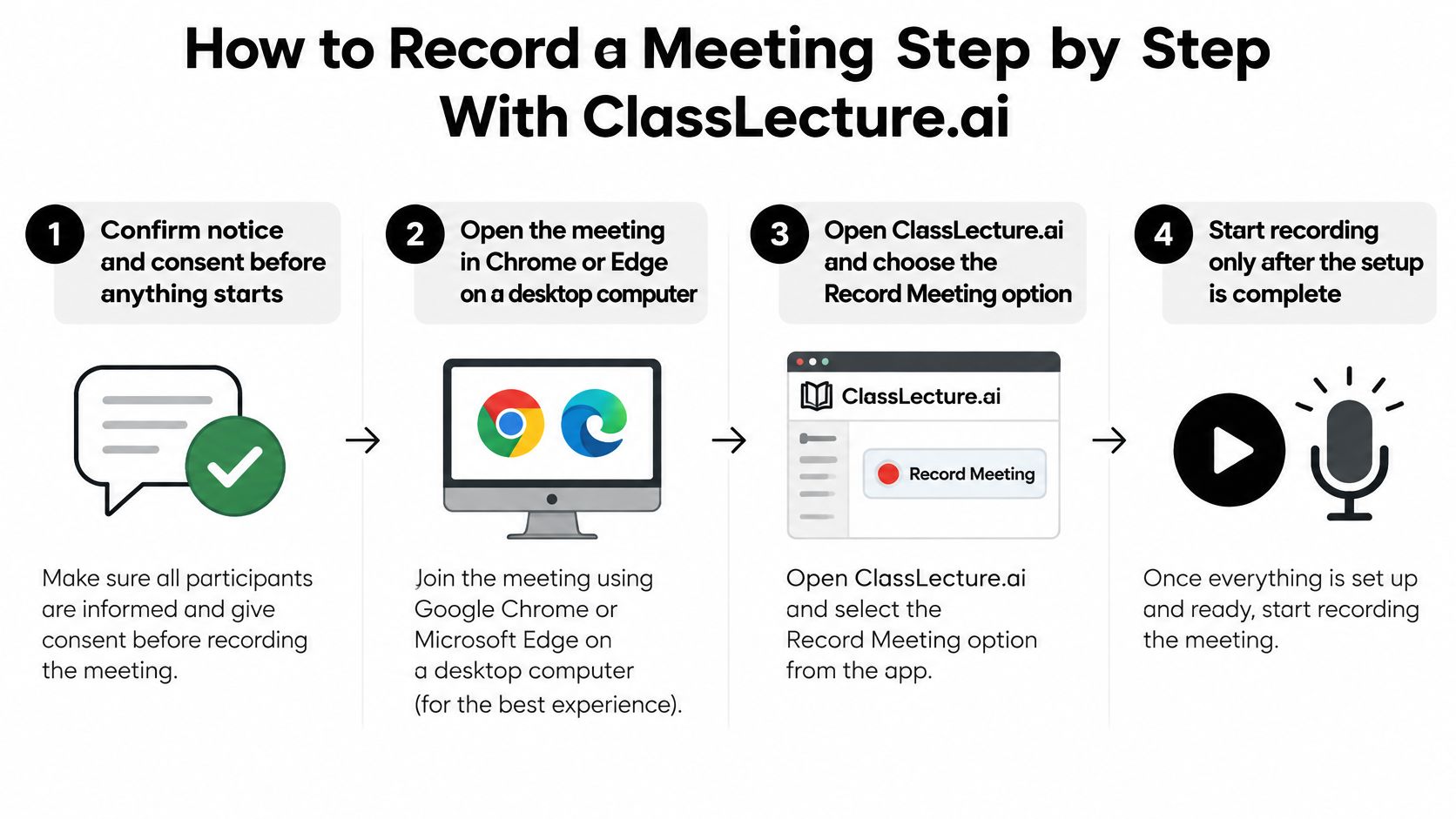
Use this overview to prepare the capture session.
Set up and capture the intended conversation
- Confirm notice and consent. Resolve participation questions before opening the recording session. The common slip is assuming the organizer's approval covers everyone.
- Open the meeting in desktop Chrome or Edge. Use the supported desktop capture route for the live session. Don't assume a phone browser offers the same meeting-audio controls.
- Open ClassLecture.ai and choose Record Meeting. Use the meeting workflow rather than relying on room microphone capture for remote voices. Choosing the wrong mode can leave you with incomplete audio.
- Select the intended Zoom, Google Meet, or Microsoft Teams source. Check the source name and available audio-sharing controls. Recording the wrong tab is an easy mistake to miss until review.
- Enable microphone mixing only when needed. If your own speech isn't included, add the microphone while wearing headphones. Speaker playback can otherwise enter the recording again through the microphone.
- Check your test capture. Listen for each participant and inspect the resulting transcript before committing to the full session. A moving recording timer doesn't prove the correct audio is arriving.
- Start recording. Keep the notice accessible in the meeting chat or room, and pause if a new participant needs an explanation. Don't treat late arrivals as already informed.
- Stop and review. End capture when the intended discussion ends, then check the saved result. Forgetting to stop can capture private conversation after the meeting.
Check the result before studying from it
A useful result has the file saved, both voices transcribed, and timestamps that match the speech. Our timestamped transcript lets you play the original audio and jump to the moment you want to verify. Mark unclear passages for correction before sharing rather than guessing what someone meant.
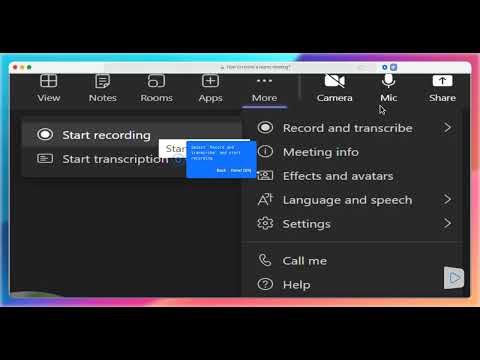
This video provides an additional walkthrough of the recording workflow.
What to Do When Someone Says No
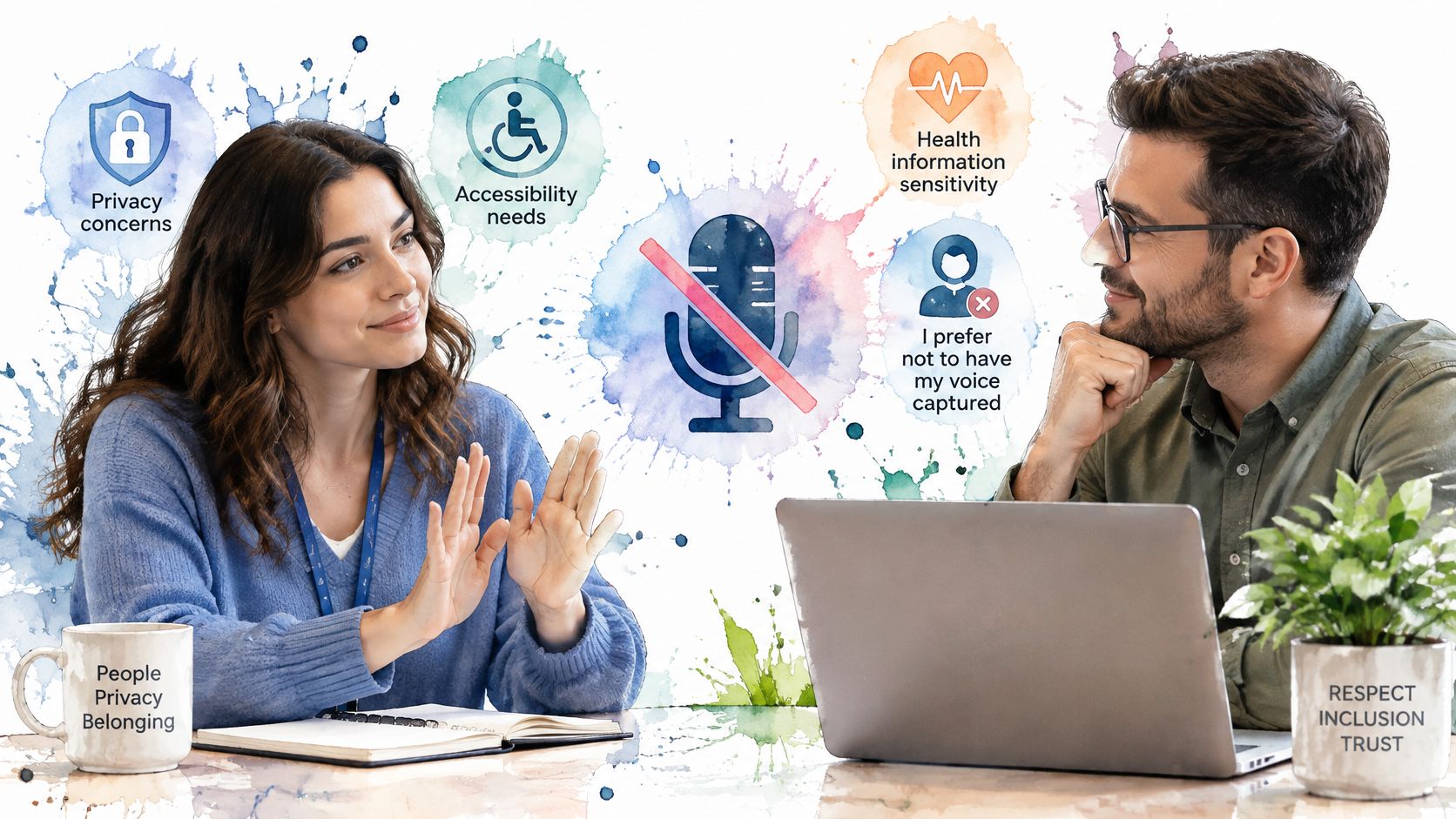
Someone may decline because the discussion involves health information, disability-related questions, workplace concerns, or a preference not to have their voice stored. They shouldn't have to disclose a private reason to make that preference understandable.
At the same time, another student may need recordings for review, language support, or an accommodation. Don't make students negotiate competing access needs publicly. Ask the instructor or appropriate support office to help arrange an inclusive solution.
The aim is a workable conversation, not pressure to accept capture.
Choose the least intrusive useful alternative
- Live notes. Assign a note-taker to capture decisions and study questions without storing voices.
- An approved summary. Ask the instructor or coach to review a short written recap.
- Presentation-only audio. Record the teaching segment, then stop before participant discussion.
- Anonymous questions and captioned slides. Preserve access to explanations without identifying each questioner.
- A separate session. Arrange an office-hour conversation when the group format can't meet everyone's needs.
George Washington University's virtual-meeting privacy guidance addresses notification and the limits on sharing educational recordings beyond their intended class audience. Broader disclosure can require removing names, images, chat content, and other identifying information.
Don't assume removing a name makes a contribution anonymous. A distinctive personal story may still identify its speaker.
Record the segment you need, not the entire session simply because the recorder is available.
Offer participants a way to flag inaccurate transcripts, especially where a summary attributes an opinion or commitment to them. AI-generated notes are aids, not authoritative minutes, and objections shouldn't disappear merely because the audio has become text.
Protect Privacy, Retention and Accuracy After Recording
Treat the saved audio, transcript, and generated notes as related records that need deliberate handling. A restricted audio file offers little protection if someone posts its transcript to an unrestricted folder.
The Information Commissioner's Office guidance on obtaining and recording consent explains the importance of documenting who consented, when, what they were told, and how they agreed. Consent is only a possible lawful basis in relevant data-protection contexts, not a substitute for considering the full set of obligations.
Apply this checklist when you save the file
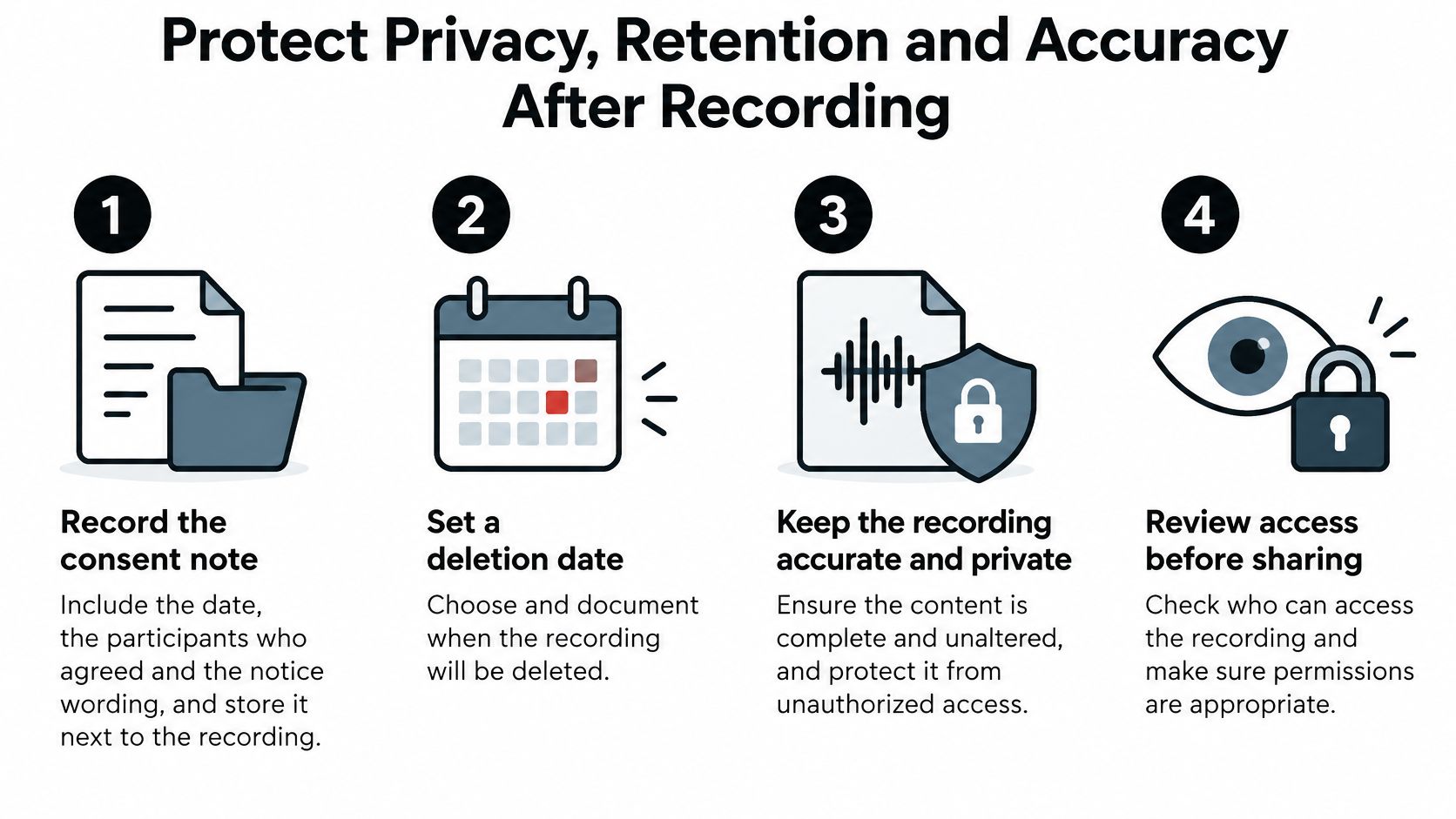
- Keep the consent record nearby. Store the notice wording, date, participants' responses, and method of agreement with the recording.
- Set a deletion date. Choose an endpoint tied to the actual study or meeting purpose, rather than indefinite storage.
- Restrict access. Give access only to the authorized audience, and review folder permissions before sending invitations.
- Verify important passages. Check names, specialist terminology, decisions, and attributed statements against the audio.
- Review any new use. Before external sharing or reuse, reassess notification, confidentiality, and the applicable legal basis.
Use this visual checklist when organizing the saved material.
Understand platform handling and your responsibilities
We don't sell or share lecture recordings and documents or use them to train outside AI models. Users retain ownership of their uploaded audio and video, lecture metadata, and chat questions.
Our privacy information explains platform handling, but it doesn't replace your own consent, access, or retention duties. Keep a recording only for as long as its stated purpose requires.
Confirm the Rules and Start Your First Recording
A sensible decision has a clear order: establish who is present and where they are, confirm the required notice and agreement, then prepare the capture. If a participant's position is unclear, don't press record while you work it out. The scope question is practical too: know who is in the call, what the chosen audio source captures, and what you will do if someone declines.
For an ongoing study routine, choose an allowance that matches your lecture workload and supporting files. Transcription hours and course-file storage measure different kinds of use, so a plan that fits your audio can still be the wrong fit for slides, readings, and notes.
ClassLecture.ai transcription and upload limits by plan
| Plan | Hours transcribed per month | Course file uploads per month |
|---|---|---|
| Starter | 20 hours | 25 files and 500 MB |
| Plus | 70 hours | 1 GB |
| Pro | 300 hours | 5 GB |
| Ultra | 1,500 hours | 20 GB |
Start small and understand what remains accessible
You can upload your own lecture before creating an account, and signing up and uploading your first lecture takes about 60 seconds. Use material you're authorized to upload rather than testing with a sensitive conversation.
When the free trial expires, new file uploads and new questions stop. Existing transcripts and chat history remain viewable in read-only form, and trial data is retained for 90 days after expiration. Treat that window as access to work you already made, while your own keep-or-delete decision still follows the purpose and consent you set at the start.
This week, arrange a short practice meeting with someone who agrees to the test. Record a brief exchange, check the source selection and playback, and verify the transcript before relying on the setup for a class or coaching session. If the practice answer is “no” or the captured audio misses a voice, change the plan before the meeting depends on it.
ClassLecture.ai offers meeting-audio capture, searchable timestamped transcripts, and study tools built around your own materials. Visit ClassLecture.ai to try a consented test recording and check that you can find and replay the moments you'll need for revision.
The ClassLecture.ai Team
We build ClassLecture.ai, the AI study assistant that turns your recorded lectures into transcripts, summaries, flashcards, and answers cited to the exact timestamp — so you learn faster from your own professor's words.
Keep reading
How to Get Transcript from Teams Meeting: A Practical Guide
Learn how to get transcript from Teams meeting in minutes. Step-by-step setup, download paths, role-based access, and study-ready fixes explained.
Read10 Name for the Group Ideas for Class and Study Teams
Browse 10 creative options for a name for the group, sorted by tone and purpose, plus quick naming tips and prompts for class projects.
ReadHow to Record Lectures on iPhone, Laptop, or Zoom (2026)
A practical guide to recording lectures with great audio on iPhone, Android, laptop, Zoom, or Panopto—plus etiquette and what to do with the recording.
Read