How to Make Transcripts from Lectures and Meetings
Learn how to make transcripts from lectures and meetings. Covers recording, automated vs manual options, editing, timestamping, and exporting for search.
You're halfway through a lecture when you realize your notes have captured every fifth sentence. The instructor's definitions are scattered across abbreviations, the example that made the difficult concept understandable is missing, and the question you'll need before the exam is buried in a page margin.
A transcript can prevent that loss, but only if you treat it as more than a text dump. The useful workflow is to capture clean audio, generate a searchable draft, correct the terms and speakers that matter, then export and reuse the result for questions, citations, flashcards, and spaced repetition. This guide explains how to make transcripts that keep working after the lecture or meeting ends.
Table of Contents
- Why Your Transcript Is the Real Study Artifact
- Capturing the Audio You Will Transcribe
- Automated Transcription Versus Human Editing
- Timestamps, Speaker Labels, and Cleanup
- Export Formats That Fit Real Study Workflows
- Turning Transcripts Into Searchable Study Tools
- A Quick Checklist After the Transcript Is Done
Why Your Transcript Is the Real Study Artifact
A student preparing for a difficult exam often starts with handwritten notes, then discovers their limitations at the worst possible time. Notes may preserve the lecturer's main topic but lose the qualification that changed its meaning, the citation attached to a claim, or the worked example that connected theory to practice. A transcript preserves the full sequence, including definitions, questions, tangents, and the wording needed to check whether a later summary is accurate.
That makes the transcript the primary study artifact, while notes become a layer built on top of it. You can search for a term, return to the exact explanation, retrieve a passage for an essay, or ask a question without reconstructing the lecture from memory.
Practical rule: Keep the transcript as your source record. Summaries and flashcards should point back to it, not replace it.
Build a reusable pipeline
The workflow is straightforward:
- Capture or upload the recording. Start with the clearest audio you can obtain.
- Generate the transcript. Use automated speech recognition for a fast first pass.
- Review the important spans. Correct names, technical vocabulary, formulas, citations, and speaker changes.
- Add navigation. Use meaningful timestamps, headings, and speaker labels.
- Export for the next job. Choose plain text, DOCX, PDF, or subtitle format based on how you'll use the file.
- Reuse the source. Search it, generate questions, create cards, and connect those cards to a review schedule.
This approach also works for coaching sessions and academic meetings. A recorded discussion can become a reference for decisions, action items, and follow-up questions rather than another forgotten file.
The scale of modern recording makes this pipeline practical. A neutral lecture transcription market summary reports a global lecture transcription platforms market of USD 1.02 billion in 2024, projected to reach USD 3.19 billion by 2033, with a 16.3% CAGR over that period. The same summary says 95% of schools record lectures always or most of the time, while 71% offer transcripts and/or closed captions. The important shift isn't only that more audio gets converted to text. Transcripts now sit inside the academic content pipeline, where search, summaries, and review tools can use them repeatedly.
Capturing the Audio You Will Transcribe
Transcription quality starts before you choose a tool. Decide where the audio already exists, then choose the least complicated capture route.
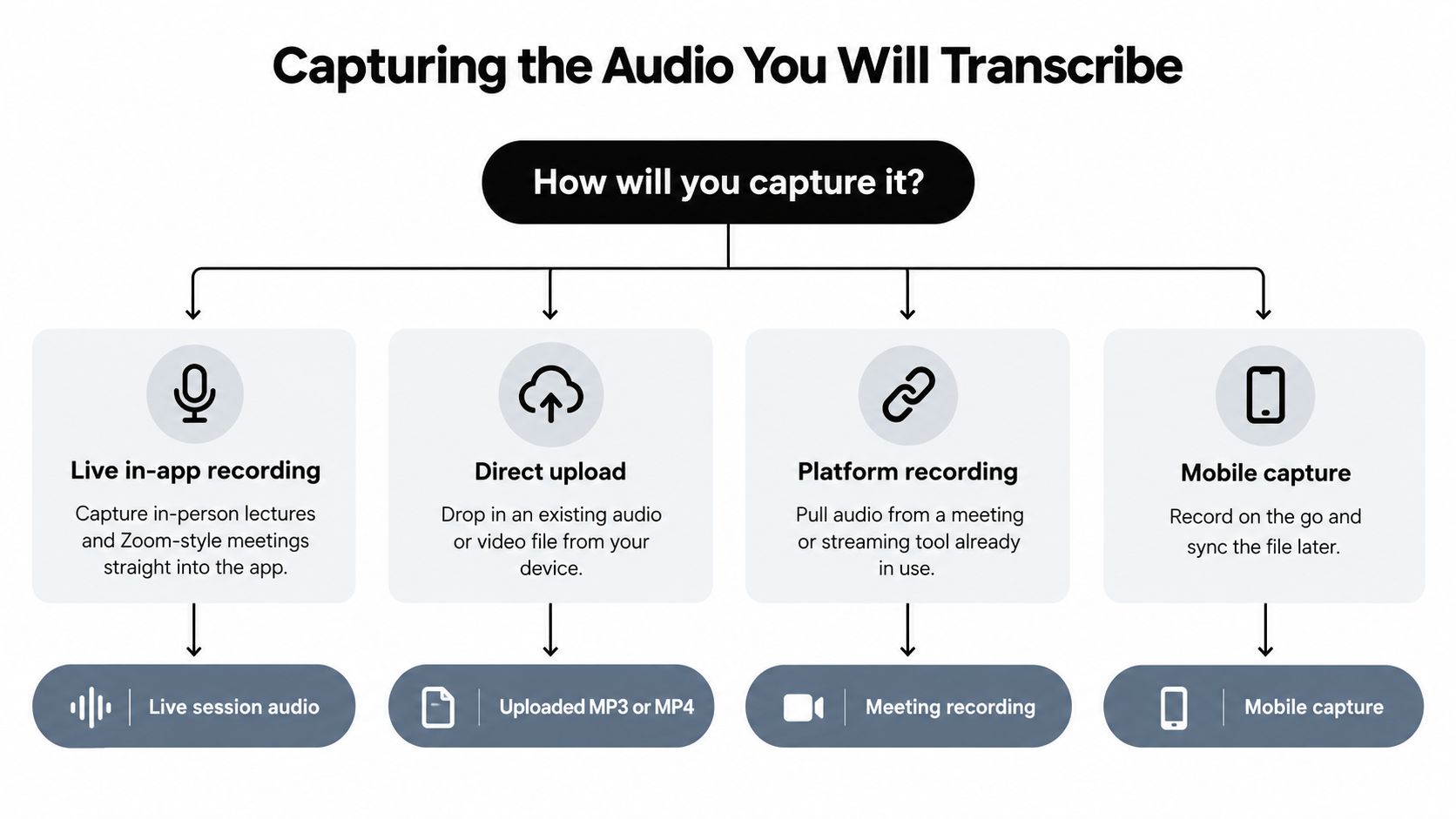
Choose the right entry point
Live in-app recording fits an in-person lecture, office-hour conversation, or Zoom-style meeting you're attending now. Select the recording control before the session begins, confirm that the microphone is receiving the lecturer or participants, and keep the device positioned where voices reach it directly.
Direct upload is better when you already have an audio or video file. Common workable formats include MP3, M4A, WAV, MP4, and MOV. Uploading avoids another recording pass and preserves the original file for later checking. If the recording comes from a phone, camera, Zoom export, or lecture-capture system, use the original rather than a compressed copy when possible.
Browser tab or platform capture helps when a lecture streams in a browser and can't be downloaded. Capture the tab or system audio, and check whether your microphone should be mixed in. That choice matters for meetings where your questions need to remain in the transcript.
An external URL can be useful for a hosted recording on YouTube, Dropbox, Google Drive, Panopto, or an institutional platform, provided you have permission to access and process it. Paste the URL into the platform's URL field, then verify that the recording is available without an expiring login session.
For Zoom-specific preparation, use this guide to recording a Zoom call before the meeting starts. It helps you choose between a local recording, an in-browser capture, and an existing meeting file.
Protect speech detail
A hollow room often creates more problems than the transcription engine. Place a microphone near the primary speaker, avoid covering a laptop microphone, and reduce fans, keyboard noise, and side conversations. In a lecture hall, a direct feed from the instructor or a close microphone generally produces more intelligible speech than a device placed at the back of the room.
Before recording the full session, make a short test. Listen for clipping, silence, excessive echo, or a microphone that captures your voice while losing everyone else. Fixing those issues early is faster than correcting an entire transcript built from weak audio.
Automated Transcription Versus Human Editing
Automated transcription and human-assisted transcription solve different problems. Automatic speech recognition gives you a usable draft quickly and makes large volumes of lecture or meeting audio manageable. Human editing improves reliability where a wrong name, term, or sentence could change the meaning.
Modern speech recognition has moved far beyond the rough drafts produced by earlier systems. A report on automatic note-taking software cites 96.5% accuracy for native English speech and 92.3% for accented English among leading platforms, compared with historical accuracy levels of 75% to 80%. The same report identifies education as 24.1% of market share. Those figures explain why automated transcripts can support routine study, but they don't remove the need to review important content.
Compare the trade-offs
| Factor | Automated Transcription | Human-Assisted Transcription |
|---|---|---|
| Speed | Produces a draft rapidly after upload or recording | Takes longer because a reviewer listens and edits |
| Cost | Usually has low marginal cost for additional files | Costs more because review time is part of the service |
| Accuracy | Strong on clear audio, but vulnerable to jargon, crosstalk, names, and noise | Better suited to correcting context-sensitive errors and preserving exact wording |
| Best fit | Lecture review, meeting notes, search, summaries, and first-pass study materials | Publication, legal records, formal accessibility work, and high-stakes documents |
For ordinary lecture study, automated transcription is usually the sensible first pass. You can then listen only to uncertain or important sections instead of paying for or performing a full manual transcription.
Use automation for scale, not blind trust.
Human review earns its keep when the transcript will be published, graded as an accessibility deliverable, used as an official record, or relied on for technical, legal, or safety-sensitive decisions. A human editor can distinguish a specialized term from a common word, identify a speaker from context, and repair a sentence that sounds plausible but is wrong.
The practical compromise is human-in-the-loop transcription. Generate the draft automatically, inspect confidence flags and key passages, provide a vocabulary list, and reserve deeper editing for sections where accuracy matters most. A recent ASR report from 3Play Media highlights why this remains necessary: automatic speech recognition can still fall short of accessibility standards, human review remains important, and English pre-recorded content has experienced an accuracy plateau despite model improvements.
Timestamps, Speaker Labels, and Cleanup
A raw transcript becomes useful when you can find your way through it. Three edits make the largest difference: meaningful timestamps, clear speaker labels, and targeted correction.
Put timestamps where memory needs anchors
Line-by-line timestamps often create visual clutter. For study, anchor timestamps to events such as a slide change, the start of a student question, the introduction of a key term, a worked example, or the beginning of a new topic. Paragraph-aligned timestamps let you jump back to the relevant passage without turning every sentence into a separate caption.
Speaker labels should reflect the conversation's complexity. Two labels, such as Instructor and Student, may be enough for a normal lecture with occasional questions. A panel, seminar, or meeting needs role-based labels such as Moderator, Panelist 1, Panelist 2, or named participants. If people speak over one another, mark the overlap rather than forcing the words into a single clean turn.
Use confidence as a review queue
A confidence score isn't proof that a passage is correct. It's a triage signal. Flag low-confidence spans, listen to the corresponding audio, and correct the words that affect meaning first.
| Confidence Range | Likely Error Type | Recommended Action |
|---|---|---|
| High | Minor punctuation or harmless wording variation | Scan during final reading |
| Medium | Names, technical terms, unclear phrasing, or speaker uncertainty | Listen to the audio and verify |
| Low | Missing words, crosstalk, noise, or an incorrect sentence | Replay the passage carefully and rewrite only what the audio supports |
For a more rigorous benchmark, create a human reference transcript from representative audio and measure Word Error Rate, or WER. Industry documentation on WER evaluation explains that the measure counts substitutions, insertions, and deletions against a reference, and that the test set should match the actual audio you plan to process. The same guidance describes readability around 88% or higher, searchable archival quality around 92% or higher, clean studio audio at roughly 95% to 98%, and more difficult sources ranging from 70% to 95%, depending on noise, accents, calls, and terminology.
Edit in priority order
- Correct proper nouns and domain terms. A wrong drug name, author, theorem, or organization can make later search fail.
- Repair punctuation around formulas and citations. Add paragraph breaks when a sentence contains a definition, sequence, or quoted source.
- Preserve speaker turns. Don't merge a question with the answer that follows it.
- Remove filler selectively. Delete repeated “um” or false starts only when they obstruct comprehension or search.
Segment long files, provide keywords before processing, and use confidence scores to focus review. Those controls are more reliable than trying to polish every line equally.
Export Formats That Fit Real Study Workflows
Exporting is part of study design. Choose the format based on what you'll do next, not on which file looks most finished.
| Format | Best For | Watch Out For |
|---|---|---|
| TXT | Flashcard generators, spaced repetition imports, lightweight search, and command-line or folder-based retrieval | Loses headings, styling, and speaker formatting |
| DOCX | Annotation, highlighting, comments, and copying excerpts into an essay | Formatting can shift between applications |
| Sharing a verified record, offline reading, and archiving | A poorly generated PDF may contain text that isn't searchable | |
| SRT or VTT | Playing synchronized subtitles inside a video player | Awkward for ordinary reading and flashcard creation |
Plain TXT is often the most useful input for automated study tools. It's lightweight, easy to search across a course folder, and less likely to carry distracting layout artifacts. Export without timestamps when you're feeding a flashcard generator, but keep timestamps when you need to return to the recording or cite a spoken explanation.
DOCX works better for active annotation. Use headings for major topics, preserve speaker labels, and keep timestamps beside the relevant paragraphs. PDF is appropriate when the document has been checked and you need a stable copy for a study group or archive.
Subtitles belong with the video. If your aim is to create captions from an MP4, this MP4 to SRT guide addresses that specific conversion path. Don't turn a plain-text transcript into a PDF merely because PDF feels more official. If the export process converts text into an image layer, you may lose the searchability that made the transcript valuable.
Turning Transcripts Into Searchable Study Tools
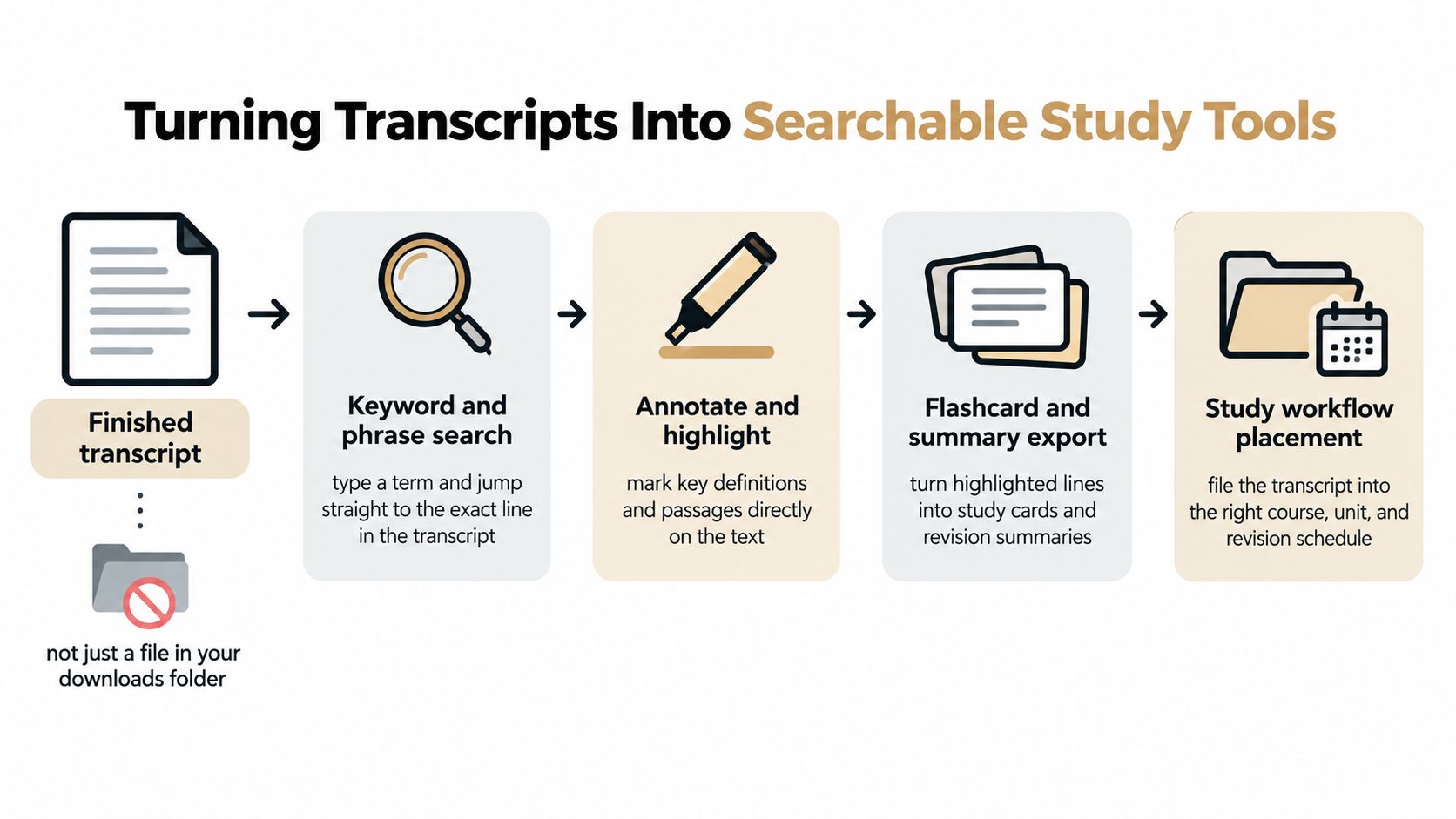
A transcript sitting in a downloads folder is unfinished work. Its value appears when the same source supports retrieval, explanation, card creation, and scheduled review.
Start with retrieval
Organize transcripts by class, unit, and lecture date. Search a single document when you need the explanation from today's session, then search the whole course when a concept appears across several lectures. Exact phrases are particularly useful for definitions, named frameworks, and terms that your notes may have abbreviated.
The next layer is question answering. Ask a focused question against one transcript, and require the answer to include the supporting passage and a timestamp. That habit keeps the explanation tied to the source instead of allowing a fluent summary to drift beyond what the lecturer said. A tool such as ClassLecture.ai's AI-powered study assistant can work over user-provided lecture materials for transcript-based Q&A, summaries, and flashcards.
Convert explanations into retrieval practice
Highlight definitions, contrasts, processes, and question-answer exchanges. Turn each highlighted passage into a prompt that tests recall rather than recognition:
- Definition prompt: What does the lecturer mean by the central term?
- Process prompt: Which steps connect the initial condition to the outcome?
- Comparison prompt: How does this concept differ from the competing idea?
- Evidence prompt: Which example or citation supports the claim?
Keep the source timestamp with each card. If you later doubt an answer, you can listen to the original explanation instead of guessing which version is correct.
Finally, place cards into the review system you already use, such as Anki with FSRS scheduling. Organize decks by lecture or week, then let the schedule surface difficult cards again while familiar material recedes. The transcript remains the durable reference, while the cards become the active memory layer.
A recording is useful when you remember where to find the relevant moment. An indexed transcript makes that moment retrievable, quotable, and reusable across an entire course.
A Quick Checklist After the Transcript Is Done
Completion isn't the moment the transcription engine finishes. A finished transcript still needs a short quality and study pass, especially if you'll rely on it for an exam, coaching review, or written assignment.
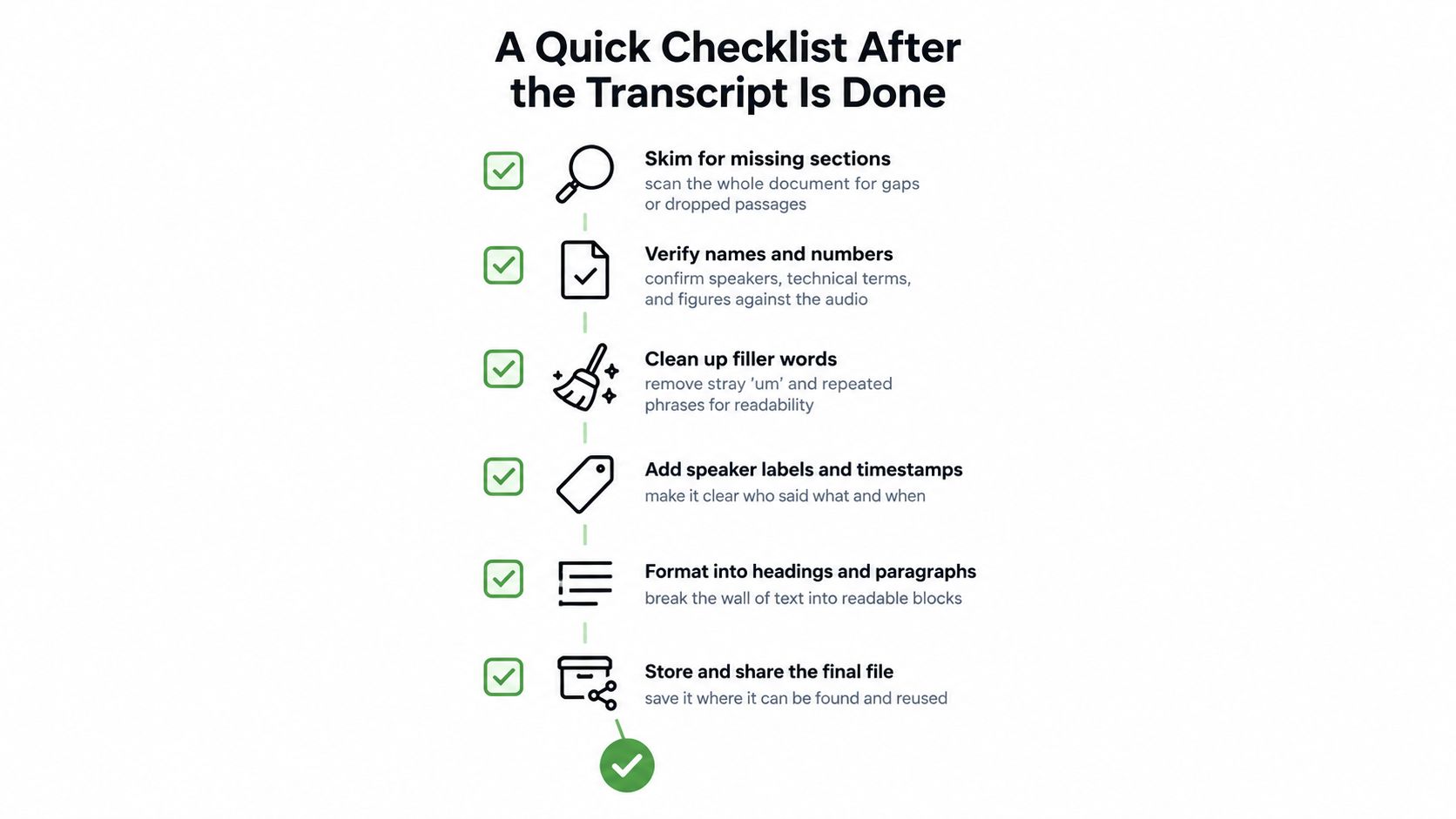
Use this checklist before you file the document:
- Skim for missing sections. Move through the whole transcript and look for abrupt jumps, silent stretches, or a topic that starts without an introduction. A complete-looking page can still omit an important passage.
- Verify names and technical terms. Compare speakers, authors, medications, formulas, and specialized vocabulary with the audio. These errors damage both meaning and later search.
- Tag difficult concepts. Mark passages that need another listen or a follow-up reading. A visible uncertainty is more useful than a confident but unverified correction.
- Test searchability. Search for one distinctive term you know was mentioned. If it doesn't appear, inspect the spelling, export method, or text layer.
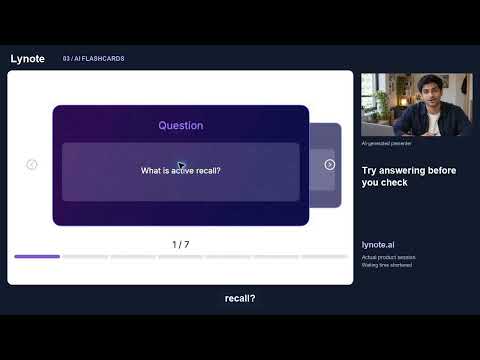
- Create one question or flashcard. This turns passive storage into retrieval practice and reveals whether the explanation is clear enough to test.
- Schedule the review. Put the card or Q&A prompt into your FSRS or Anki workflow, organized under the correct class and lecture.
A transcript earns its keep when it leads to an action.
For meetings, the action may be a decision, owner, or follow-up question rather than a flashcard. For a nursing lecture, it may be a definition tied to a timestamp. For a technical course, it may be a corrected term that makes future searches succeed. The capture, transcript, cleanup, export, and review steps form one continuous workflow.
ClassLecture.ai lets you record or upload lectures and meetings, generate searchable transcripts, ask questions against your materials, and create flashcards and study guides from the resulting content. Try the capture-to-review workflow with your next recording by visiting ClassLecture.ai, then keep the transcript as the source you return to whenever a card, answer, or citation needs checking.
The ClassLecture.ai Team
We build ClassLecture.ai, the AI study assistant that turns your recorded lectures into transcripts, summaries, flashcards, and answers cited to the exact timestamp — so you learn faster from your own professor's words.
Keep reading
How to Record Zoom Call for Better Study
Learn how to record zoom call sessions for study. Master local vs cloud capture, audio settings, permissions, and turning lectures into AI study guides.
Read10 Lecture Transcription App Options Compared
Compare 10 lecture transcription app options for accuracy, study workflows, pricing, integrations, and privacy before choosing a tool.
ReadLecture Notes AI Explained How It Turns Lectures Into Study
Discover what lecture notes AI does, how it works, its benefits and limits, and how to turn recordings into transcripts, flashcards and Q&A.
Read