Meeting Recording and Transcription for Smarter Study
Learn how meeting recording and transcription turns lectures and study groups into searchable, timestamped transcripts you can question, summarize, and export.
Meeting recording and transcription turns fast-moving lectures into text you can actually work with. When a professor talks faster than you can write, you keep the exact phrasing, the examples, and those side comments you would have missed.
Table of Contents
- Why Meeting Recording and Transcription Changes How You Study
- Uploading Existing Recordings and Attaching Reference Videos
- Turning Transcripts Into Q&A, Summaries, and Flashcards
- Exporting, Organizing, and Building a Repeatable Review Routine
Why Meeting Recording and Transcription Changes How You Study
Think about a nursing lecture where two conditions sound almost identical. You're still writing down the first one when the instructor drops the key difference. The audio saves you, but good luck finding that 30-second moment later without a transcript.
A searchable transcript makes the recording usable. You look up the term, read what was said around it, then jump back to hear it in the instructor's own words.

- Hold onto the context. Go back to the full example, not just a one-line definition from your notes.
- Flag confusion without stopping. Mark the spot that didn't click and keep listening instead of falling behind.
- Double-check before you memorize. Compare tricky terms and dosages against the recording and your slides.
This isn't just an accessibility thing. It's a solid revision habit. For instance, Zoom’s transcript infrastructure shows how participant audio and timestamped text can live right inside the meeting itself.
Connect Each Recording to a Study Task
The real win isn't audio becoming text. It's knowing what you'll do with that text once class ends.
ClassLecture.ai ties recording and uploading to transcripts, grounded questions, summaries, and flashcards. You don't need all of them every time — just pick the one that matches how you're reviewing that day.
Workflow Stage to Study Benefit
Here's how that full loop looks when you're working through a tough lecture:
| Workflow Stage | What Happens | Study Benefit |
|---|---|---|
| Capture | Record the session | Save the full explanation as it happened |
| Upload | Add a recording you already have | Pull older classes back into your routine |
| Transcribe | Turn speech into searchable text | Find concepts in seconds |
| Question | Ask about your own materials | Clear up the parts that felt fuzzy |
| Review | Build summaries and flashcards | Practice recall in your own words |
| Export | Save your Q&A as PDF | Keep the discussion for offline review |
Once you run a lecture through that sequence once, it becomes second nature for the next one.
Think of a transcript as a reference, not an answer key. Confirm the important details against the source before you lock them into your notes.
Take a biology seminar. Ask, “How did the professor tell mitosis apart from meiosis?” Follow the timestamps, listen to that explanation again, then turn the differences into a few sharp review prompts.
Try it with a single lecture in ClassLecture.ai first. Run through capture, upload, transcribe, question, and export, then use the same rhythm for your next class.
If you're capturing a live class straight from Chrome or Edge, an in-browser recorder is usually the simplest setup. Something like the Record Meeting tool in ClassLecture.ai can grab a Zoom, Google Meet, or Microsoft Teams session without extra software.
Hit record before you join the call, select the meeting tab, and let the browser share that tab's audio. Starting early saves you from missing the first couple minutes while you're fumbling with settings.
Choose the Right Audio Source
Not all audio capture works the same way, and picking the wrong one is how you end up with a muddy transcript.
- Tab audio only hears that one browser tab — your instructor, shared slides, any video played inside the meeting. It's cleaner because Slack pings and Spotify don't sneak in.
- System audio hears everything on your device. Go this route only if the lesson jumps between tabs or pulls in sound from outside the meeting.
Either way, do a little prep. Mute notifications, close anything playing in the background, and run a 10-second test if you can. Headphones help cut echo on the call, though they won't fix a weak mic.
Add Your Microphone When Needed
Turn on microphone mixing any time your own voice is part of what you'll want to study later. Without it, you'll get the instructor perfectly and lose your own questions entirely.
Say you're a nursing student recording a Tuesday seminar on dosage calculations. You ask one clarifying question halfway through — with mixing on, both sides are saved. Same idea for a study-group call where everyone is talking through concepts. Instructor-only audio just isn't enough there.
Record the voices your study session needs. Mixing in your mic keeps your questions in the transcript, but make sure everyone knows they're being recorded.
Check Consent and Policy First
Before you record course content or participant conversations, check what your school actually allows. Say what you're capturing, get the consent you need, and stick to your instructor's rules for storing and sharing the file.
This isn't just a classroom thing. Guidance on AI-generated meeting records and transcript controls makes the same point: give clear notice, limit who can access the transcript, and have a retention plan, because those records can matter later.
ClassLecture.ai also has a Record Lecture tool if you want to capture new audio directly. The free plan includes up to three hours of meeting recording and up to three hours of audio recording each month, which is plenty to test the workflow. Try it on one seminar, check the transcript quality, then build out from there.
Already have the audio? You don't need to record again.
Uploading Existing Recordings and Attaching Reference Videos
Head to Upload Your Lecture in ClassLecture.ai and drop in whatever is already sitting on your laptop or phone. You can start without creating an account, which makes it easy to test with one lecture before you dump in the whole semester.
You’re covered for MP3, MP4, M4A, WAV, MOV, and WEBM. Not sure which export to pick? Check our guide to audio file formats before you upload.
Quick prep that saves headaches later:
- Check the filename. Rename it to something you’ll actually recognize, like “BIO201 Cell Signaling October 14” instead of audio_final2.mp3.
- Preview the recording. Play 10 seconds to make sure it’s the right lecture and not a dead-air test.
- Gather related sessions. Pull together all the files for one course first if you’re doing a batch.
Sitting on a midterm backlog? Bulk upload supports up to 80 audio or video files at once, with the first ten prioritized for faster transcription. List your most urgent ones first — like the two lectures covering next week’s physiology exam.
Keep Reference Videos Beside Your Transcripts
After you pick your files, you can attach an optional external video URL to that lecture. ClassLecture.ai works with reference links from YouTube, Zoom, Google Drive, Panopto, and similar places, so the original stays right next to your transcript and study notes.
Think of this as a sidecar, not a replacement for the upload itself. I’ll often upload a seminar recording, then clip the original Panopto link to it so I can rewatch a demo while I read.
Keep the source close. The transcript helps you find the explanation fast. The video shows you what was on screen when it was said.
Organize by Class So You Can Find It Again
Toss it into Classes while you’re there:
- Add the course code and name, like BIO201 Human Physiology.
- Include the school, term, and year if you’ve retaken or the professor reuses material.
- Favorite frequently accessed courses so your go-to classes stay at the top.
For extras, the free plan includes up to three files for notes or textbooks, or up to 100 MB per month of text content. My advice? Start with one recording, link its reference video, and get that course folder set up today.
Automated meeting recording and transcription makes lectures searchable in seconds. That said, accuracy still comes down to context, pronunciation, and the quality of the original audio.
In ClassLecture.ai, your captured or uploaded speech shows up as text you can actually work with. Timestamps let you jump straight back to the moment it was said.
Don't read the whole thing top to bottom. Skim for the concept you need, read around it, then replay that clip when the exact wording matters.
Zoom’s Realtime Media Streams is a good example of why this helps — transcripts with timestamps and speaker labels are far easier to review than one long, unlabeled file.
Check Details That Matter
Mistakes tend to pile up in the same places: technical terms, numbers, names, and who said what. “Serotonin” may become “serum tone,” and “10%” may become “10 percent.”
Say your professor walks through a dosage calculation. Replay it, then compare it against your uploaded notes and textbook before you turn it into a flashcard.
- Replay the audio around the timestamp, especially if a term shows up that your instructor never actually used
- Double-check numbers, dates, instructions, and equations against your notes or textbook
- Confirm who was speaking when attribution changes what the advice or question means
Pick your source before you ask a question. Go with audio transcripts only for your instructor's exact words, notes and textbooks only for a written procedure, or both combined when the explanation pulls from speech and course materials.
A transcript is a map, not the territory.
ClassLecture.ai can transcribe up to 30 hours of audio or video, so you can keep a full semester of lectures in one place. At that scale, transcription just becomes part of how you study.
Build a Verification Habit
Verification is easiest when it's routine. Before exam review, flag every generated claim that affects your answer, then check those passages against the recording or reference doc.
It saves a lot of time without assuming the transcript is perfect — a risk laid out well in this analysis of AI-generated meeting transcripts.
For deeper checks, read our guide to transcribing audio to text before you compare a manual transcript with the generated one.
The checklist is simple:
- Replay timestamps and confirm the sentence
- Check figures against notes or textbooks
- Label uncertain passages instead of quietly fixing them
- Reask in a fresh thread if the answer mixes sources
Record corrections right next to the original so they're easy to review later.
A recording by itself won't help much on an exam. It starts paying off when you quiz yourself on it, chase down the answers, and force yourself to recall ideas instead of just rereading them.
Turning Transcripts Into Q&A, Summaries, and Flashcards

In ClassLecture.ai, you can ask questions directly about your own materials and get answers grounded in what was actually said, complete with timestamp citations and page references. In a psych lecture, you might ask, “How does the instructor distinguish negative reinforcement from punishment?”
Don’t just take the answer at face value. Click through to the cited moment first, read what surrounds it, then push with a follow-up. Ask which classroom example the instructor used to make that distinction clear.
- Pick your source scope. Stick to transcripts, add in notes and textbooks, or use both, depending on what you want the answer built from.
- Pick your summary style. Grab a Standard Summary for a quick overview, or switch to a Speaker’s Summary when you need to review who said what.
- Start a New Conversation. When you pivot — say, from definitions to application questions — open a fresh thread so answers stay clean.
Keep the original explanation within reach. A good study answer should always point you back to the passage behind it.
If you want a different way to organize this kind of output, check out our guide to AI meeting notes.
Build Summaries and Schedule Flashcard Review
Make it a habit to generate an automated AI summary and a structured study guide for every lecture. If you’re juggling physiology, psychology, and an online seminar, turn on automatic summaries so each new upload already has a review starting point.
Then don’t stop at the summary. Use it as raw material for actual practice.
- Preview the free Psychology 101 and English 101 sets to see how core-subject cards are structured
- Use question-and-answer cards for explanations and fill-in-the-blank cards for key terms
- Rate each recall with Again, Hard, Good, or Easy so FSRS spaced repetition can set the next review
For example, try to answer a reinforcement question from memory before you flip the card. Then rate how well you really recalled it, not just how familiar it looked.
Review all due flashcards across a class, pulling from both lectures and documents. Treat the class exam readiness widget as a nudge to keep reviewing, not a prediction of your grade.
Pick one recent lecture today. Ask it a grounded question, check the citation, then clear the cards that are due for that class before you add anything new.
Make meeting recording and transcription a weekly habit, not just another folder you never open.
Exporting, Organizing, and Building a Repeatable Review Routine
Export your Q&A chat sessions as PDF so you can review offline and actually share them before the next class. It sounds small, but that one habit changes how much you retain.
Take last Tuesday’s physiology lecture as an example. Here’s a flow that works well:
- Record or upload the session, then quickly check the transcript against the audio
- Ask specific questions in Conversations or Q&A instead of broad ones
- Generate an AI Summary or study guide, then export the discussion as a PDF
This infographic lays out the six stages from first capture to a review routine you can stick with.
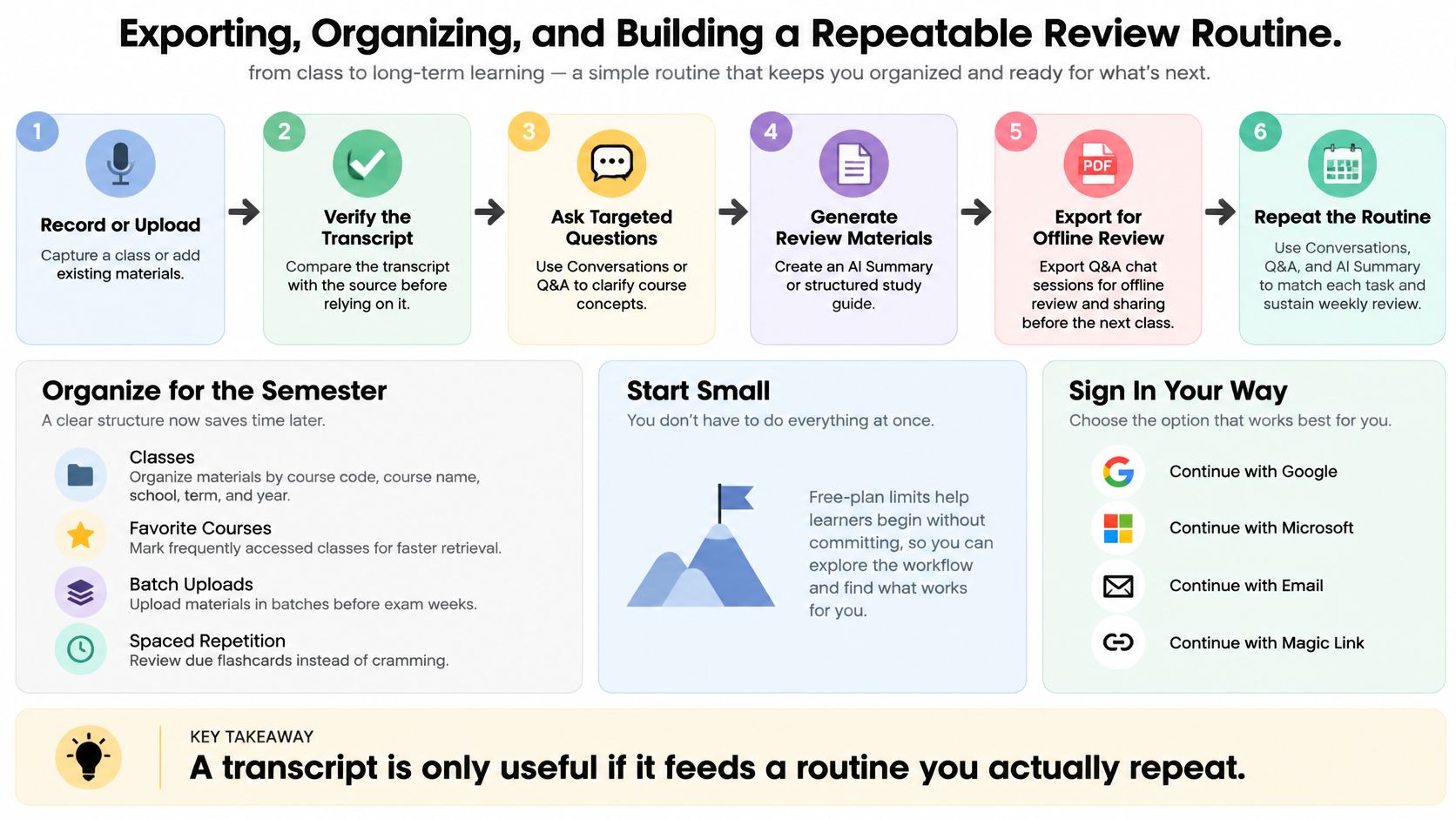
The real trick is treating export as part of studying, not as an afterthought that leaves good answers stuck in chat.
- Organize Classes by course code, name, school, term, and year
- Favorite frequently accessed courses and do your uploads in batches before exam weeks
- Review due flashcards with spaced repetition instead of last-minute cramming
Start Small and Repeat Weekly
The free plan gives you three transcription hours and ten questions monthly. That’s plenty to test a simple routine without feeling overwhelmed.
You can sign in with Google, Microsoft, email, or magic link and be set up in a minute.
Try ClassLecture.ai on one lecture today, double-check the transcript, and export your first review PDF before your next class.
A transcript is only useful if it feeds a routine you actually repeat.
The ClassLecture.ai Team
We build ClassLecture.ai, the AI study assistant that turns your recorded lectures into transcripts, summaries, flashcards, and answers cited to the exact timestamp — so you learn faster from your own professor's words.
Keep reading
10 AI Flashcards Maker Tools for Students
Compare 10 ai flashcards maker tools for student workflows, source checking, imports, exports, spaced repetition, and lecture-based study.
ReadBest Meeting Transcription App: 10 Top Picks
Compare the best meeting transcription app options for accuracy, formats, integrations, pricing, privacy, students, and instructors.
ReadFree Audio Transcription: 10 Tools Compared
Compare 10 free audio transcription tools for accuracy, limits, languages, privacy, and study workflows, including ClassLecture.ai.
Read